
Review evaluated runs
Pick a project dataset, filter calls or workflows by result, and inspect the transcript, analysis, checks, and source trace in Runs.
Project Runs turns mapped dataset items into an investigation workspace for calls, conversations, and step-based workflows. Use it when the order of messages or operations matters more than a flat dataset item table.
Runs does not start an eval job. It reads dataset items, their latest available dataset-scoped scorer results, and linked source trace data. Use Eval Jobs to create or run an evaluation.
Pick a dataset
Open /app/{organizationSlug}/projects/{projectId}/runs. The first page lists datasets associated with the project. Search by dataset name or slug, then select a dataset.
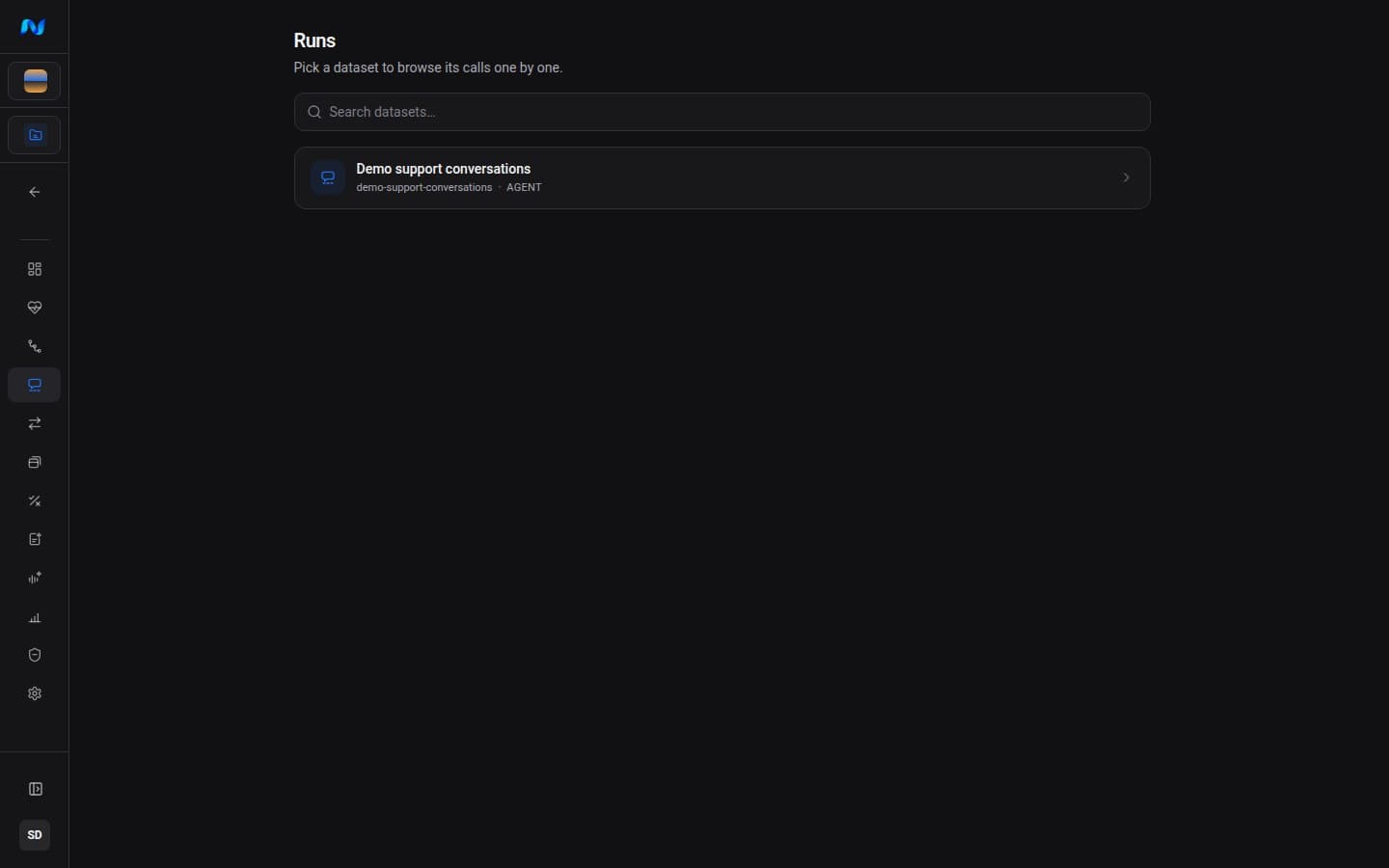
If the dataset is missing, confirm its project association in Datasets. The dataset route is /app/{organizationSlug}/projects/{projectId}/runs/{datasetSlug}.
Use the workspace
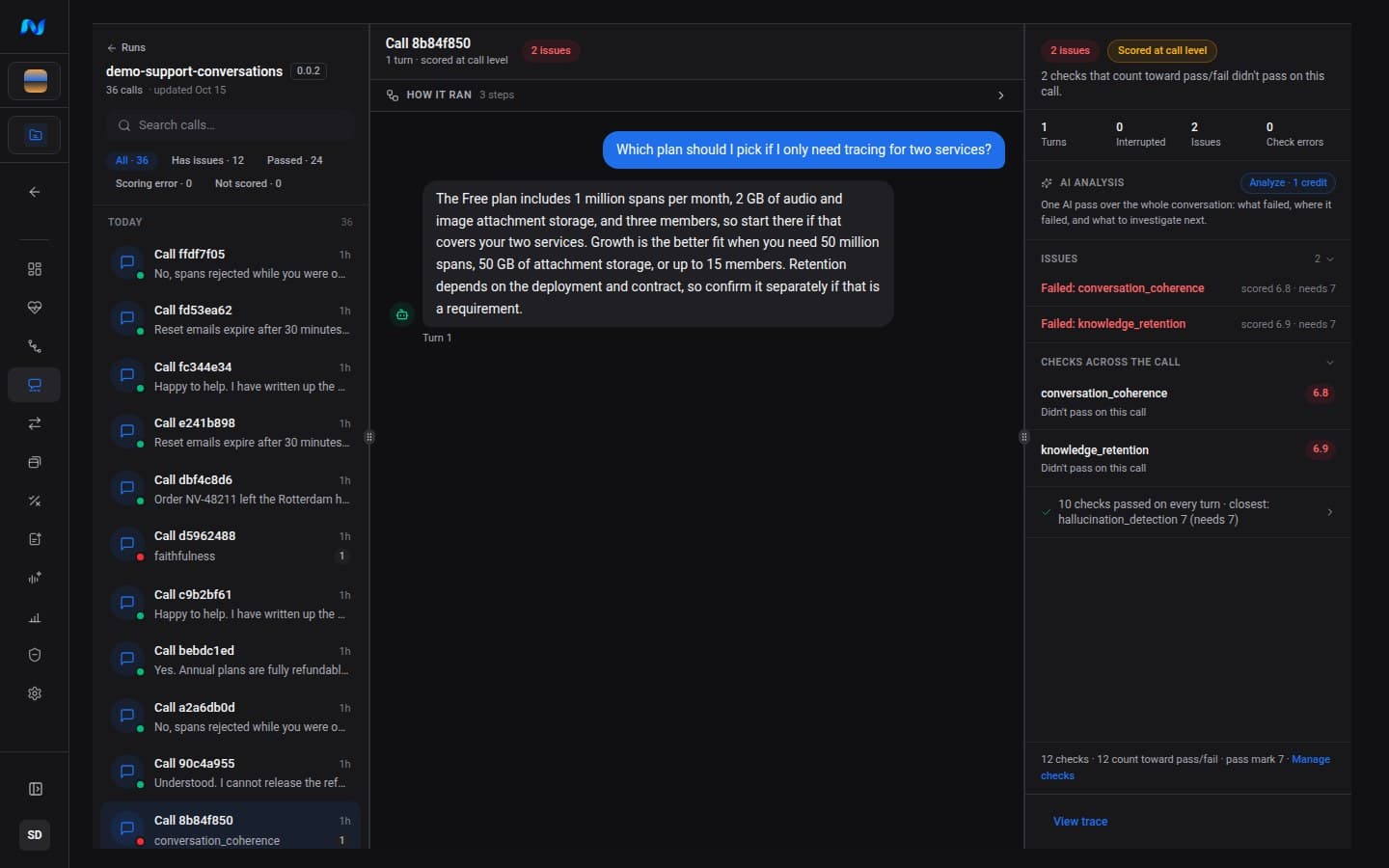
On desktop, Runs has three resizable panes:
| Pane | What it answers |
|---|---|
| List | Which calls or runs match the result, failed-check, and text filters? |
| Transcript | What did the caller, agent, tool, or workflow do in order? |
| Analysis | Which checks passed, failed, errored, or are still waiting, and where is the source evidence? |
On mobile, the same surfaces appear as List, Transcript, and Analysis tabs.
Select a call on the left, read the mapped sequence in the center, then connect failed checks to the source trace from the analysis pane.
Filter the list
The result filters are:
- All shows every item in the current dataset scope.
- Has issues shows calls with one or more valid checks below their pass mark.
- Passed shows calls whose counting checks passed.
- Scoring error shows calls with scorer execution errors.
- Still scoring appears while dataset scoring is active; Not scored appears when scoring is idle.
Use the failed-check filter to show only calls with an issue on a specific check. Text search narrows the list by the fields supported by the Runs API. Filters combine, and Clear filter returns to the complete dataset list.
Counts beside filters are facets for the current dataset result set. They are not eval-job execution counts.
Read the transcript or workflow
Runs adapts to the mapped item shape:
- conversational items render caller and agent turns in order;
- step-based items can show a How it ran workflow;
- supported voice data can expose call recording or segment playback;
- tool calls, timing, model, token, cost, and interruption details appear only when the mapped item or source trace contains them.
Select a turn or step to align transcript context with its checks and details. Use the full item detail sheet when you need normalized fields or raw mapped data that do not fit the transcript.
Interpret checks
The analysis pane separates:
- call-level status and duration;
- issues and errors;
- checks that count toward pass or fail;
- reference checks that do not determine the call result;
- per-turn or per-step details where the dataset supports them.
A result can look wrong because the mapper dropped required context, the scorer was incompatible with the item shape, or the application behavior truly failed. Confirm all three before changing a prompt, model, tool, or policy.
Open the source trace
Select View trace to open the recorded execution behind the mapped item. Compare:
- the mapped transcript or step content;
- the scorer reasoning and pass mark;
- the original trace and span attributes;
- the dataset version and source item identifier.
The source link requires a valid source_trace_id. If the dataset items are not linked to conversations, Runs directs you to the Items view instead.
A reliable review sequence
Continue with Choose and configure scorers, Set up and review eval jobs, or Explore traces and datasets.