
ETL Jobs
Transform complete source traces into evaluation-ready dataset items.
An ETL Job connects one project and environment to a target dataset. Its Python mapper receives each complete trace and chooses whether to emit zero, one, or many evaluation items.
Choose the item boundary first
The mapper controls the unit that NovaEval scores:
| Source trace | Possible mapper output |
|---|---|
| Health check or incomplete request | No items |
| Single model response | One response item |
| Five-turn conversation | Five turn items, one complete conversation item, or both in separate datasets |
| RAG request | One item combining query, ordered context, and answer |
| Tool-calling agent | One decision item or one complete terminal agent item |
One item per LLM call is not a platform requirement. Choose the boundary that supplies all fields needed by the intended scorer.
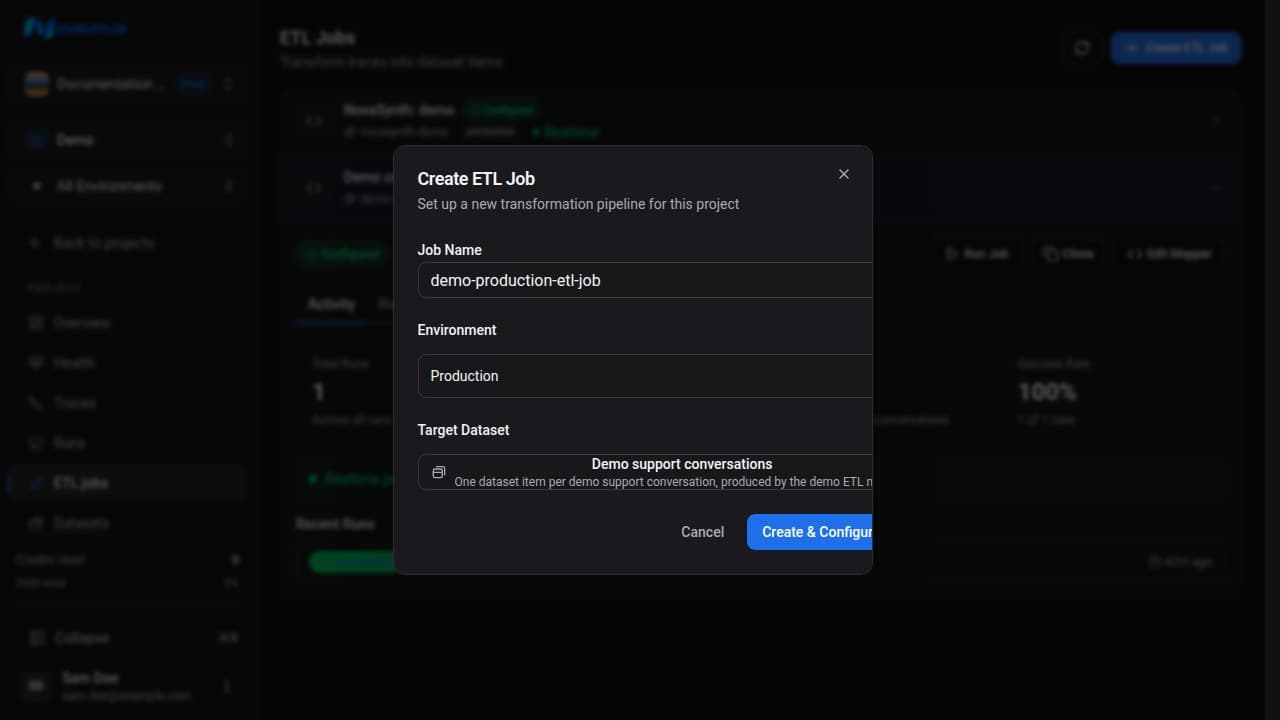
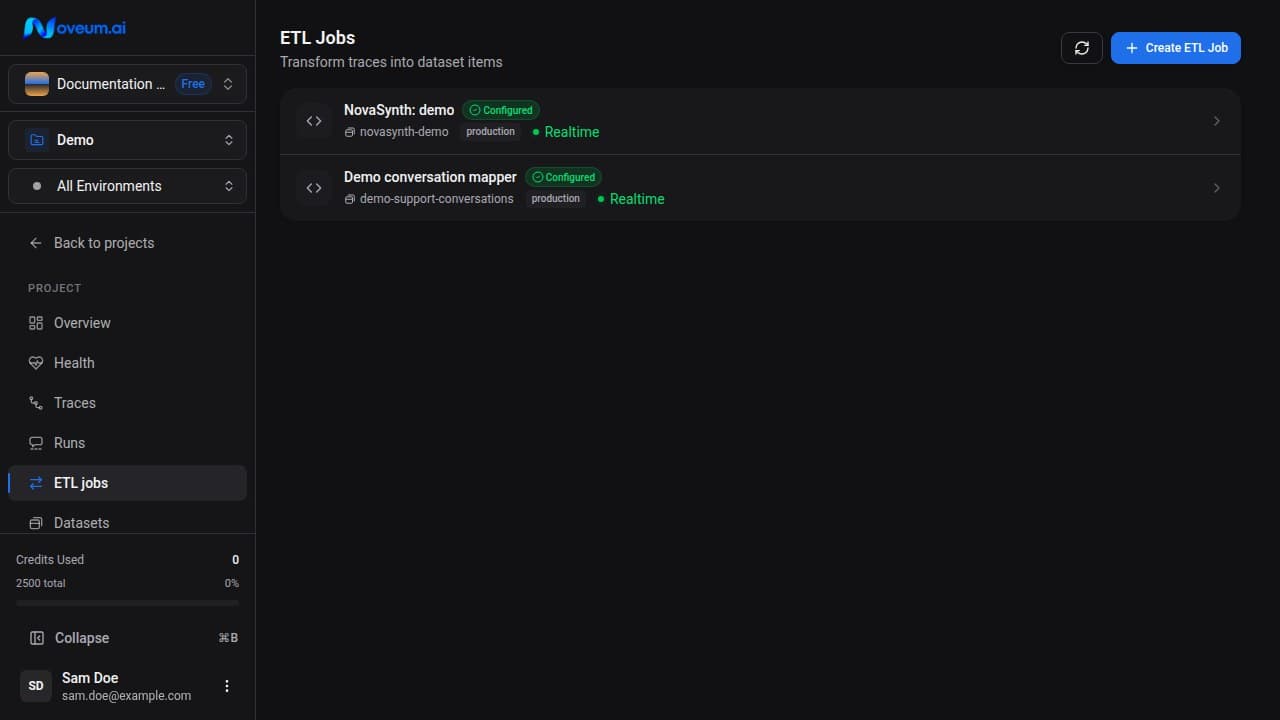
Create an ETL Job
From the project's ETL Jobs area:
- create a job with a descriptive name
- select the source project and environment
- select or create the target dataset
- open the Mapper tab
Only traces matching the job's project, environment, and run filters are processed. Realtime processing also requires a saved mapper, a linked dataset, completed configuration, and an enabled job.
Understand mapper input
The mapper receives the transformed trace object, including:
- trace identity, name, status, timing, attributes, and metadata
- ordered spans and parent IDs
- parsed
trace.attributes - parsed
trace.spans[].attributes - provider, model, usage, service version, and application fields that instrumentation captured
Attribute names are application-specific. Review representative traces before generating code and confirm the evidence needed for model, retrieval, tool, conversation, and terminal fields is present.
Map and preview
Select generation context
Choose up to five diverse traces for AI mapper generation. Include success, failure, tools, retrieval, and distinct span shapes when those paths exist.
Generate and review code
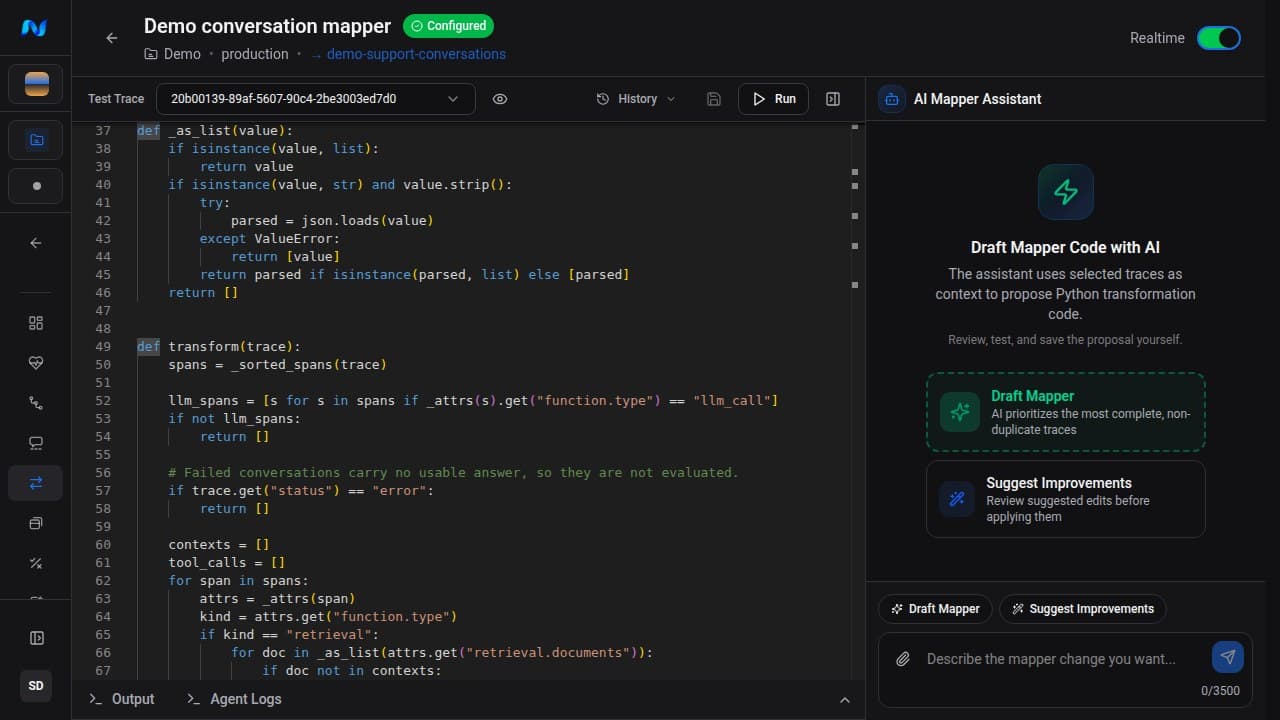
Generate code, inspect every source path and output field, then apply it to the editor. Generated code is a starting point, not a schema guarantee.
Choose one Test Trace
Select a representative trace for the preview. This is separate from the traces used as generation context.
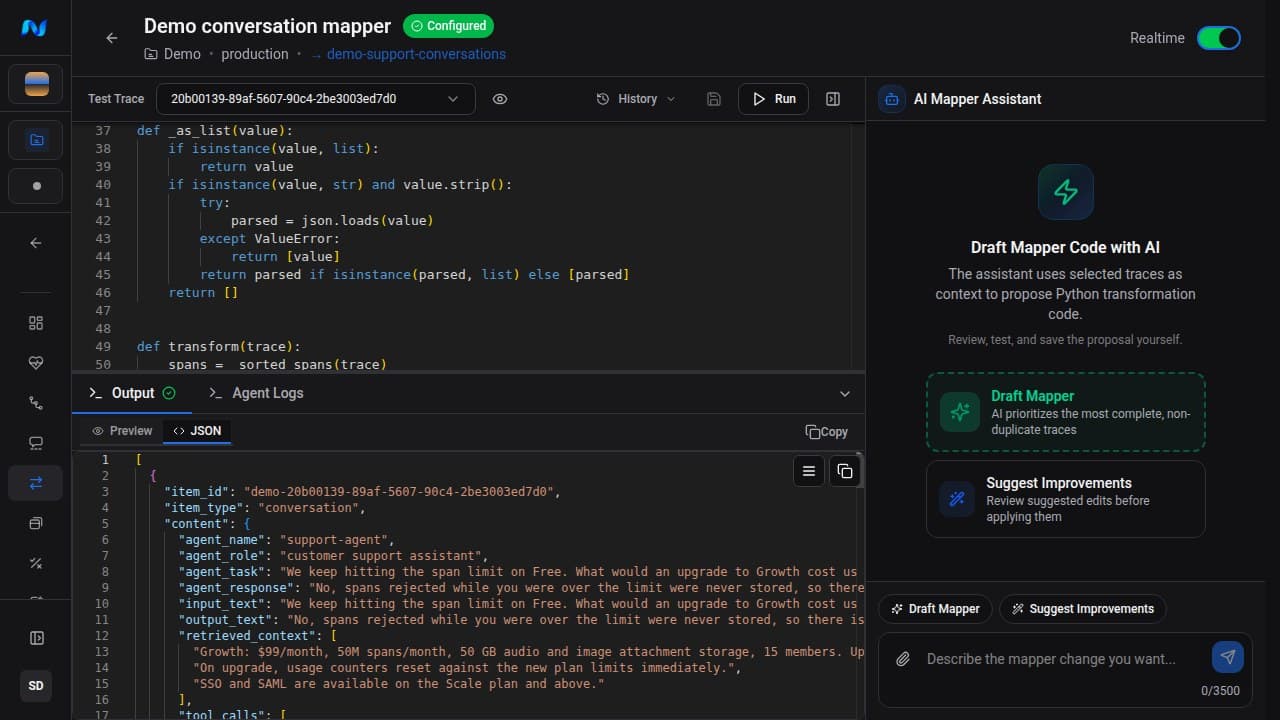
Run the preview
Check output count, item boundaries, provenance, item type, and the exact fields required by selected scorers.
Improve or debug
Edit the code directly or use Suggest Improvements with a precise description. Suggestions need existing mapper code, so use Draft Mapper first if the mapper is empty. Use Debug with AI for mapper preview errors.
Activate processing
Save the mapper, mark the job configured, and enable realtime processing when new matching traces should be handled automatically.
The preview does not prove scorer compatibility. Open the resulting item JSON and compare it with the dataset item contract and selected scorer requirements.
Useful improvement requests
Emit no item when the trace has no terminal model response.Combine the retrieval query, ordered documents, and final answer into one RAG item.Emit one conversational item per assistant turn and include all prior turns in conversation_context.Preserve the selected tool, arguments, result, and offered tool schemas on the same item.Set agent_exit only on the final aggregate item and preserve exit_status separately.
Use real source paths from the Test Trace when describing a mapping issue.
Run and monitor
A manual run can select traces or apply trace filters. Monitor run status, processed traces, produced items, duration, and errors.
Statuses can include pending, queued, processing, completed, failed, and cancelled. Retry a failed run after correcting its mapper or configuration. Failed runs expose error details; AI-assisted debugging is available for mapper preview errors rather than as a generic action on every run.
API outcomes and retries
Triggered runs expose tracesProcessed, tracesFailed, tracesWithoutItems, and traceErrors. tracesWithoutItems counts successful mappings that produced no usable items and is included in tracesProcessed. An intentional empty mapping is not an error. Missing requested traces, failed span lookups, and missing expected spans are recorded as failures with their trace IDs.
A completed run has finished attempting its selected traces; check tracesFailed to detect partial failures. With the default skipProcessed: true, a new run retries recorded failures and skips previously successful traces. All failure IDs are retained. Progress counters update after each batch; the full error list is saved when a run completes, fails, or is cancelled. Older runs with incomplete error records retry only their recorded failures, so successful traces are not automatically duplicated. To recover other missing traces, select only their IDs and send skipProcessed: false. Partial success completes without a whole-run queue retry; a run with no processed traces can still retry automatically.
During processing, updatedAt receives a heartbeat every 15 seconds, including while span queries are waiting or retrying. Spans are fetched in one query per processing batch, with 10 traces per batch by default. Throughput depends on database load, span volume, and mapper runtime; there is no fixed traces-per-second guarantee. Compare completed-run duration and processed counts for your workload.
Keep the mapper current
Preview again when instrumentation, provider payloads, prompts, tools, or agent structure changes. Use service_version in item metadata so evaluation results can be associated with the behavior that produced the source trace.