
Set up and run eval jobs
Create an evaluation configuration, choose items at run time, estimate credits, and inspect scorer results.
An eval job binds one dataset to a saved scorer configuration. You choose the item subset each time you run it, and Noveum keeps the run history and scorer results.
Before you start
You need a populated dataset first. Use an ETL job, the dataset items API, or copy items from another dataset. Inspect representative item JSON and confirm that the required scorer fields exist. Configure an AI provider when the selected model-judged scorer uses organization credentials.
Create a job in the dashboard
Open Eval Jobs and choose Create Eval Job. The creation surface groups the workflow into configuration, scorer selection, and review. A project-embedded dialog presents the same work as Setup, Browse Scorers, and Configure Scorers.
1. Set up the job
Enter a recognizable job name, optional description, and populated dataset. Choose Batch for on-demand runs or Realtime - Run on new items to create an enabled job that automatically evaluates eligible items added to the dataset.
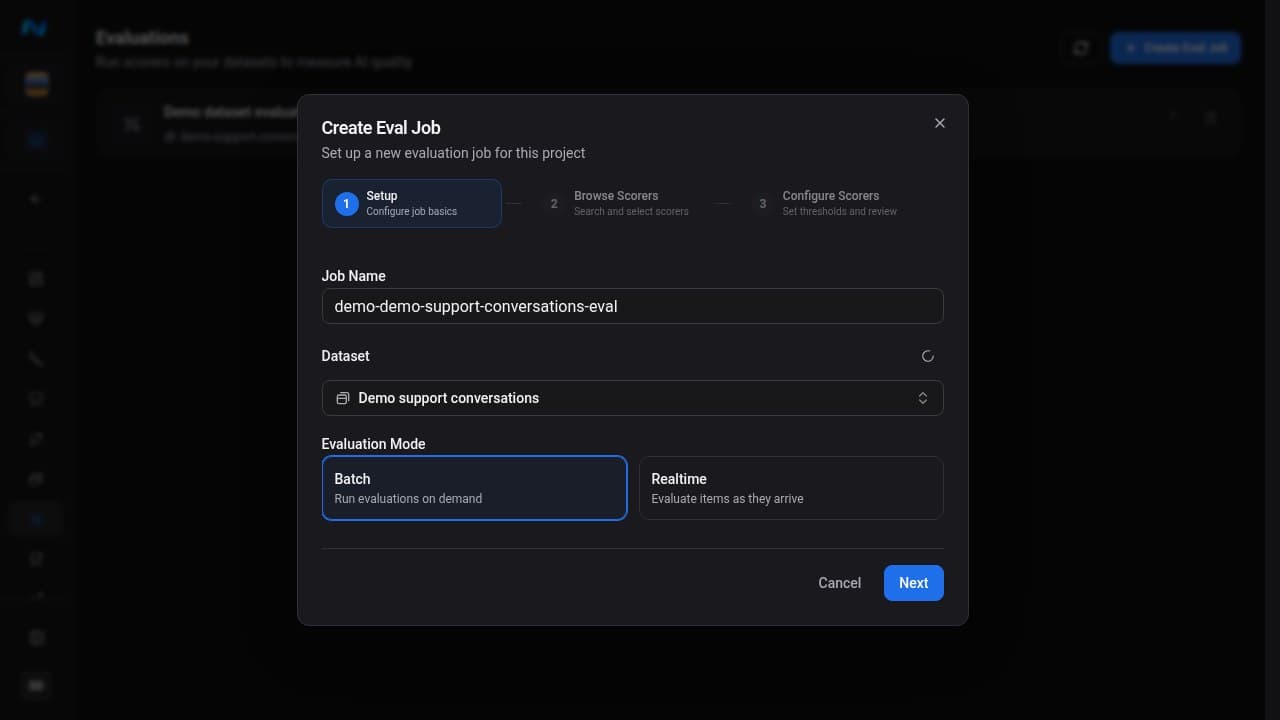
Scorer compatibility comes from the fields in the selected items, not from the dataset's collection label. Inspect several mapped items and check a scorer's required fields before attaching it to the job.
2. Browse and select compatible scorers
Search or filter the scorer library and select at least one compatible scorer. A selected card gets a check mark and appears in the final Configure Scorers step. You can also get scorer recommendations.
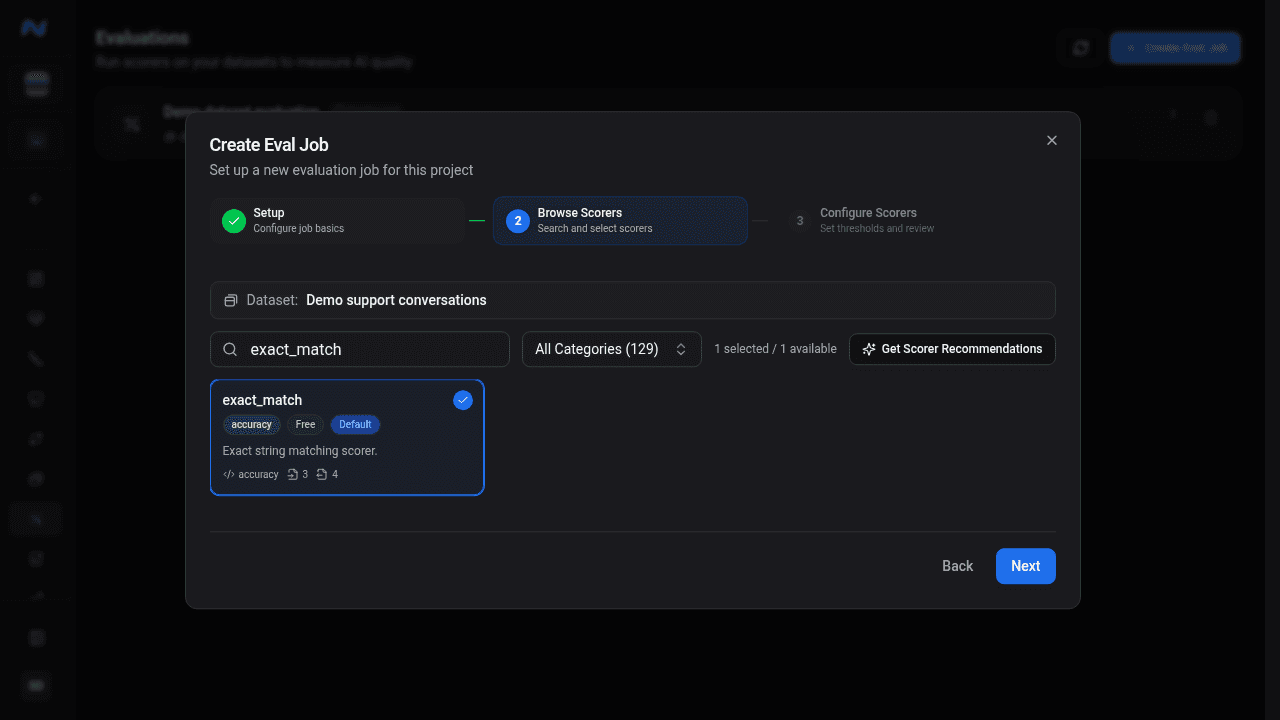
The eval-job picker can include your organization's private custom scorers in addition to the 112 published scorers. Use the scorer catalog for the current public list, native scales, and cost classes.
Get scorer recommendations
Choose Get Scorer Recommendations to have Noveum sample the selected dataset and suggest scorers that fit its fields. The analysis runs in the background, so you can close the dialog and reopen it later to see the saved result.
Suggestions are grouped as Highly recommended, Good to have, and Optional, each with a confidence percentage and the span types it applies to. Select the ones you want and choose Apply to add them to this job. Nothing runs until you start the job. After the dataset changes, choose Re-analyze.
A recommendation means the fields look compatible, not that the scorer matters to your release decision. Check its required fields and add scorers for your own requirements, including a custom scorer.
3. Configure thresholds and review cost
Review the job name, dataset, evaluation mode, scorer count, and each pass threshold. Published built-in scorers that need a judge use the organization's default provider and model. A private custom scorer can save its own provider, model, and temperature; keep those choices stable across comparable runs.
When the selected set contains premium scorers, this step also shows the maximum creation-time credit estimate using every item currently in the dataset. Free-only sets do not show a credit estimate.
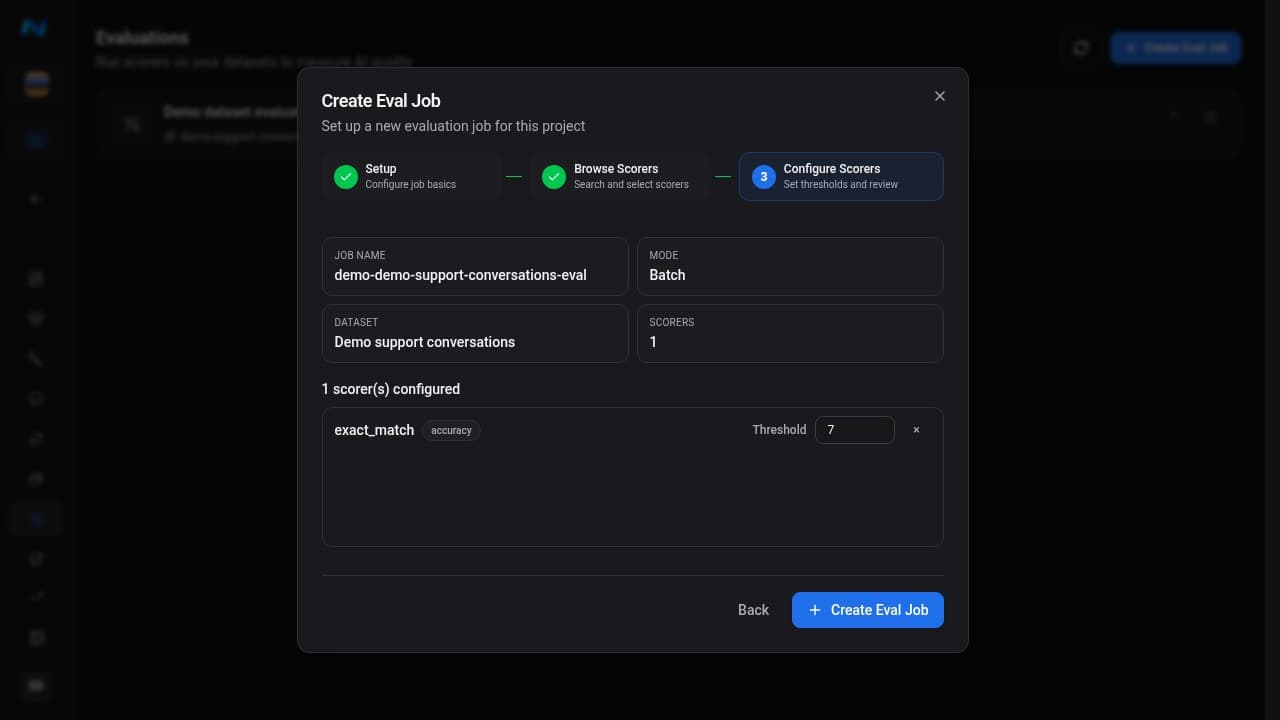
Creating the job saves a draft configuration, so one to four Premium scorers can be selected here. The five-Premium-scorer minimum is checked when you start an ordinary multi-item run. It does not apply to a one-item evaluation or a Smart Sampling run.
Evaluation mode
- Batch creates the job for manual, bounded runs.
- Realtime - Run on new items creates the job enabled, so eligible items created by an ETL run can enter automatic evaluation.
You can enable or disable a saved job after creation. Use a Smart Sampling policy when you need controlled automatic selection and tiered scoring instead of evaluating every eligible new conversation.
Review saved scorer configuration
After creation, use Scorers to inspect or edit the job defaults. Use Settings to review the job name, dataset, scorer count, total items, and Smart Sampling policy.
Credit calculation
- Scorers labelled Free in the directory cost no evaluation credits.
- Scorers labelled Premium charge according to input size and scorer type; see billing rates.
- An ordinary multi-item run that includes Premium scorers requires at least five Premium scorers.
Free/Premium is an explicit scorer classification, not a synonym for deterministic/model-judged. Some signal-processing or rule-based scorers are premium; confirm the label in the generated catalog.
For example, 500 short items evaluated by five Premium text scorers consume 2,500 credits when each check fits within the first 4,000 estimated input tokens. Longer inputs and audio scorers can cost more. An ordinary multi-item run with one to four Premium scorers is rejected with MIN_PREMIUM_SCORERS_REQUIRED. Draft creation, Smart Sampling, and the one-item evaluation path bypass that minimum; each Premium item-scorer pair still consumes credits at its billing rate.
The creation-page estimate assumes every item in the dataset. The run dialog gives the more useful estimate because it applies current filters, Skip already evaluated, and the scorer selection. A run that cannot fit within the available balance is rejected with CREDIT_QUOTA_EXCEEDED.
Run a job
NovaEval has two manual run paths. They use the same job and dataset but solve different selection tasks:
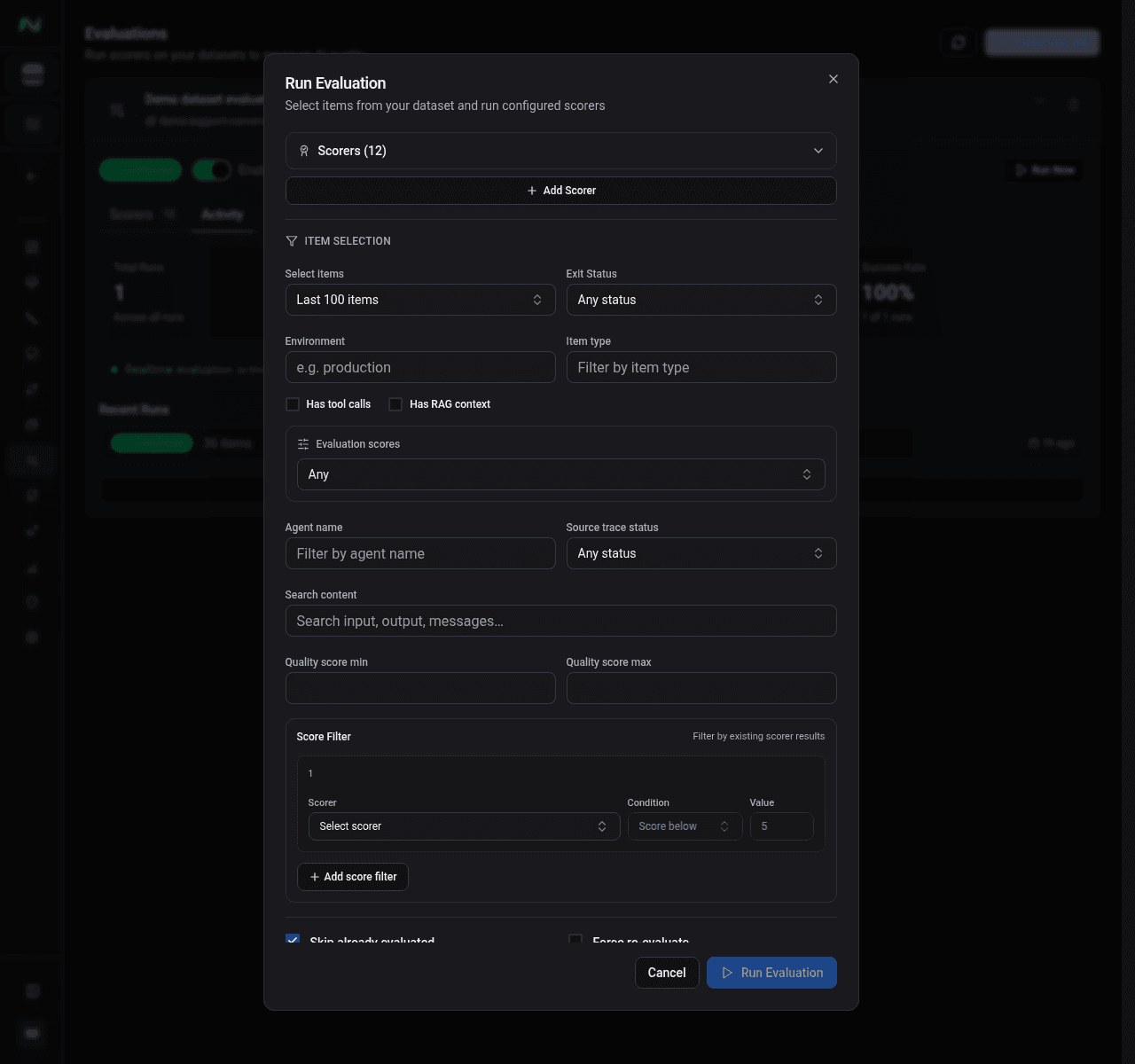
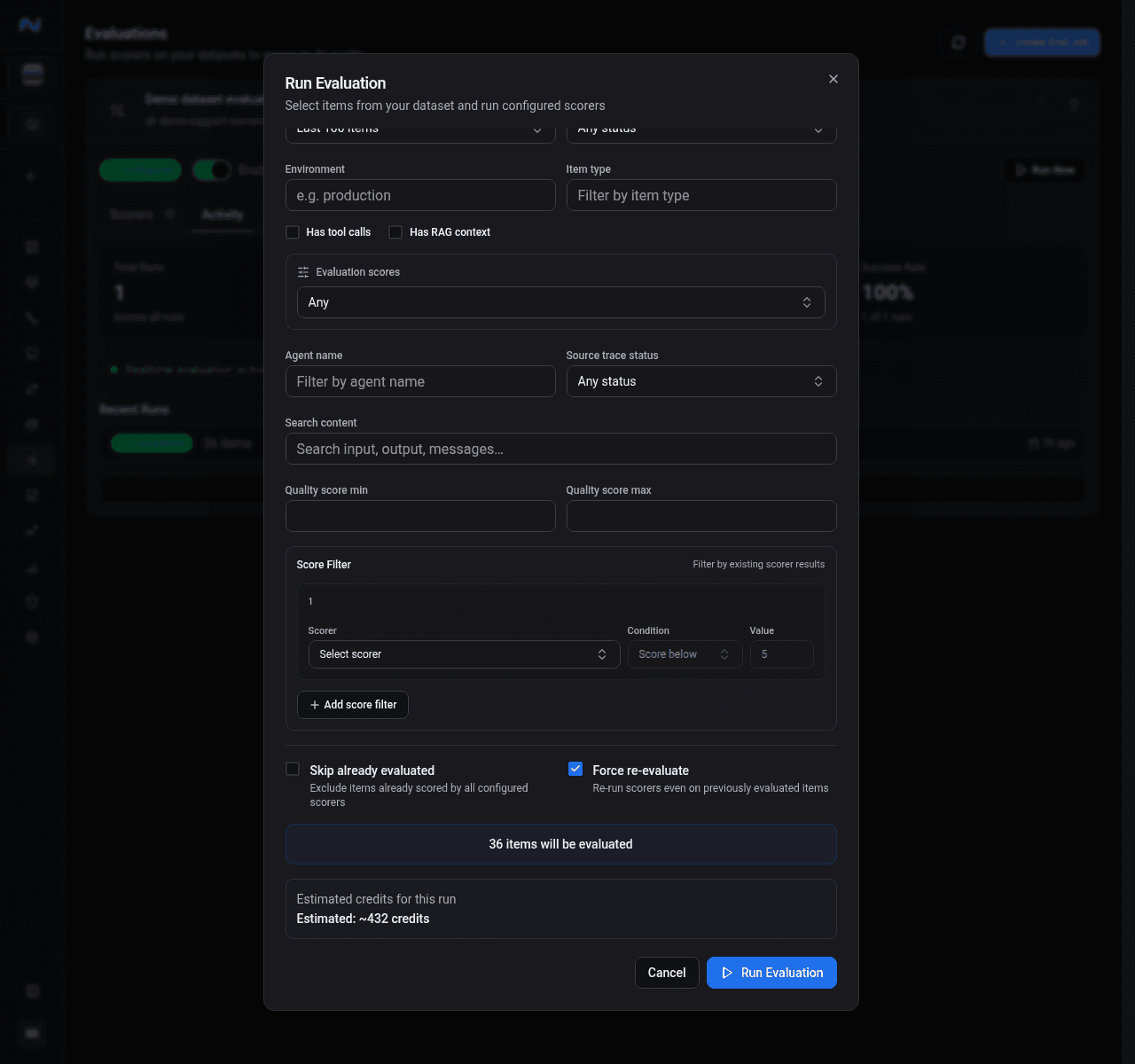
- From the expanded job card on Evaluations, Run Now opens a filtered-cohort dialog with temporary scorer and threshold overrides.
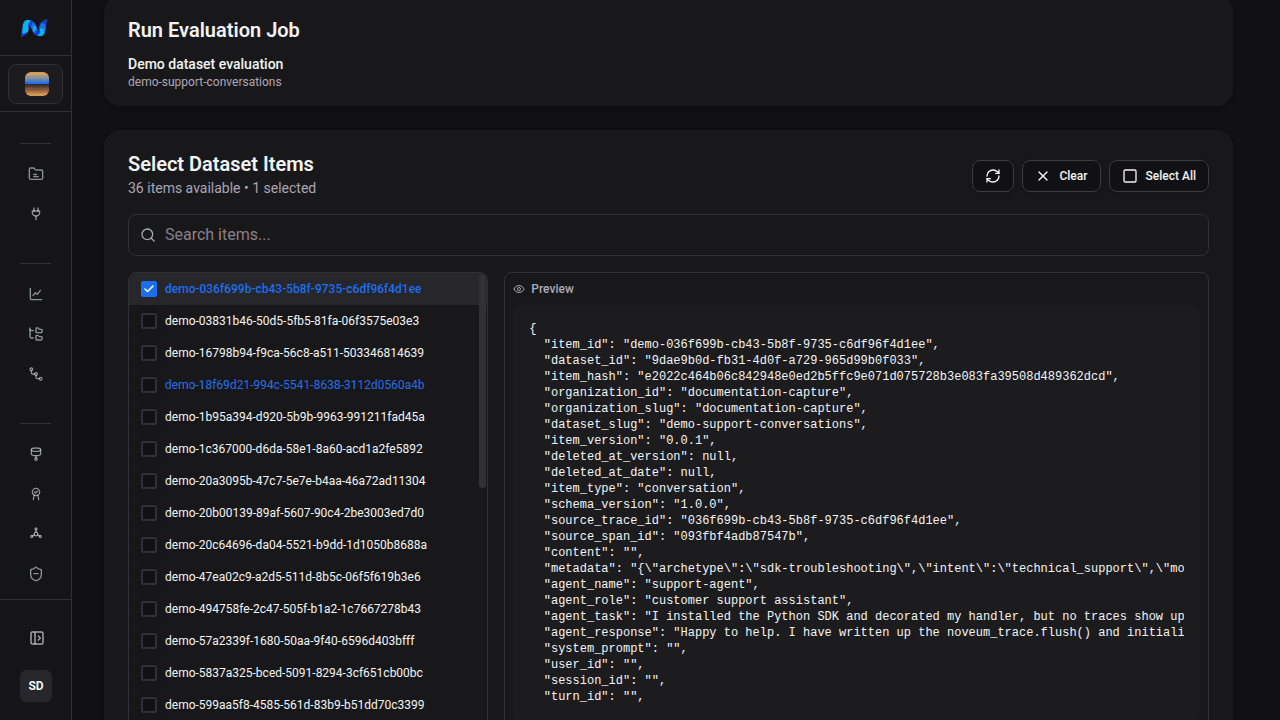
- From the full job-detail header, Run Now opens a dedicated page for choosing explicit item IDs and previewing their JSON. It uses the job's saved scorer configuration.
Run a filtered cohort from Evaluations
Expand the job card on Evaluations, then choose Run Now. Before starting:
- Expand Scorers and confirm every scorer and threshold.
- Use Add scorer when this run needs a temporary check; select Save as default only if the changed set should persist on the job.
- Choose an item-count or time preset, then set any data-shape and score filters.
- Confirm the live matching-item count, already-evaluated count, and premium-credit estimate.
- Choose Run Evaluation. The button remains unavailable when no items or scorers are eligible, the preview is loading, or the organization is over quota.
Run explicit items from job detail
Open the full eval-job detail, then choose its header Run Now action. On Run Evaluation Job:
- Search the dataset by item ID, use Select All, or select individual rows.
- Select an item ID to inspect its JSON in the preview pane.
- Confirm the selected-item count and target dataset.
- Choose Run Job to submit those item IDs as the candidate population with the job's saved scorer configuration.
Selected IDs are candidates, not a promise to create duplicate results. By default, Noveum skips items that already have a successful result for every selected scorer ID. This check does not compare the scorer's saved prompt, model, threshold, or other configuration. Use Force re-evaluate after changing any scorer configuration, or whenever you intentionally need another result for the same item.
Item selection in the filtered-cohort dialog
Choose the last 50, 100, 200, or 500 items; enter a custom count up to 100,000; choose the last 1, 7, 30, or 90 days; include all items; or set a custom date range. The filter panel currently includes:
| Filter | Options and use |
|---|---|
| Environment | Match the item's environment string |
| Item type | Match the normalized item kind written by the mapper |
| Exit status | Any, ok, or error |
| Source-trace status | Any, ok, or error |
| Has tool calls | Require at least one mapped tool call |
| Has RAG | Require mapped retrieval data |
| Has evaluation scores | Any item, only items with scores, or only items without scores |
| Agent name | Match a specific mapped agent name |
| Content search | Find text in the indexed dataset-item content |
| Quality-score range | Keep items at or above a minimum and/or at or below a maximum quality score |
| Score filters | Compare one or more selected scorer values with <, ≤, >, or ≥; combine multiple rows with AND or OR |
The API filter object additionally accepts serviceVersion; the current run-dialog filter panel does not expose that field.
The live preview shows how many items match and how many are already evaluated.
Run filters select an evaluation population; they do not rewrite the dataset or its published release. If a filter unexpectedly returns no items, clear the score filters first, then verify item type, environment, date scope, and whether Skip already evaluated removed the remaining matches.
Re-evaluation controls in the filtered-cohort dialog
- Skip already evaluated is on by default and removes items that already have successful results for all selected scorer IDs.
- Force re-evaluate deliberately scores the selected items again.
The dashboard treats these as mutually exclusive. The skip check is based on item and scorer IDs, not scorer-configuration revisions. Use Force re-evaluate after changing a threshold, scorer instruction, judge model, provider, or temperature.
API filter precedence
For POST /api/v1/eval-jobs/:id/trigger, explicit datasetItemIds select the run's items. Otherwise, a supplied filterConfig replaces the job's saved defaultFilterConfig. If filterConfig is omitted, the saved filter applies before sampling. Previously evaluated items are excluded before applying the filter limit. Only a job without either filter defaults to the whole dataset.
Use the camel-case agentName key, for example defaultFilterConfig: {"agentName": "receipt_field_extraction"} when creating or updating the job, then trigger with {"skipEvaluated": true}. Agent-name filtering uses a case-insensitive substring match. Unrecognized filter keys and invalid saved filters are rejected instead of silently broadening the run. An explicit empty filterConfig: {} replaces the saved filter with an unfiltered selection.
Evaluation run history and cancellation
A run can move through pending, running, completed, failed, or cancelled. Pending and running jobs can be cancelled from Runs. The run table reports processed items, failed items, start time, and duration.
The run count and result count are intentionally different: one processed item can produce one result for each selected scorer. Open a failed or partially completed run before starting another run so you can distinguish provider, credit, scorer-input, and processing errors.
Scorer errors and not-applicable results
Non-finite scores are scorer errors. Negative sentinel scores such as -1, -2, and -3 remain not applicable. Claim-verification results with failed individual claims are errors even when their average is positive. Inspect the error and required item fields before treating these results as evidence of poor content quality.
Results
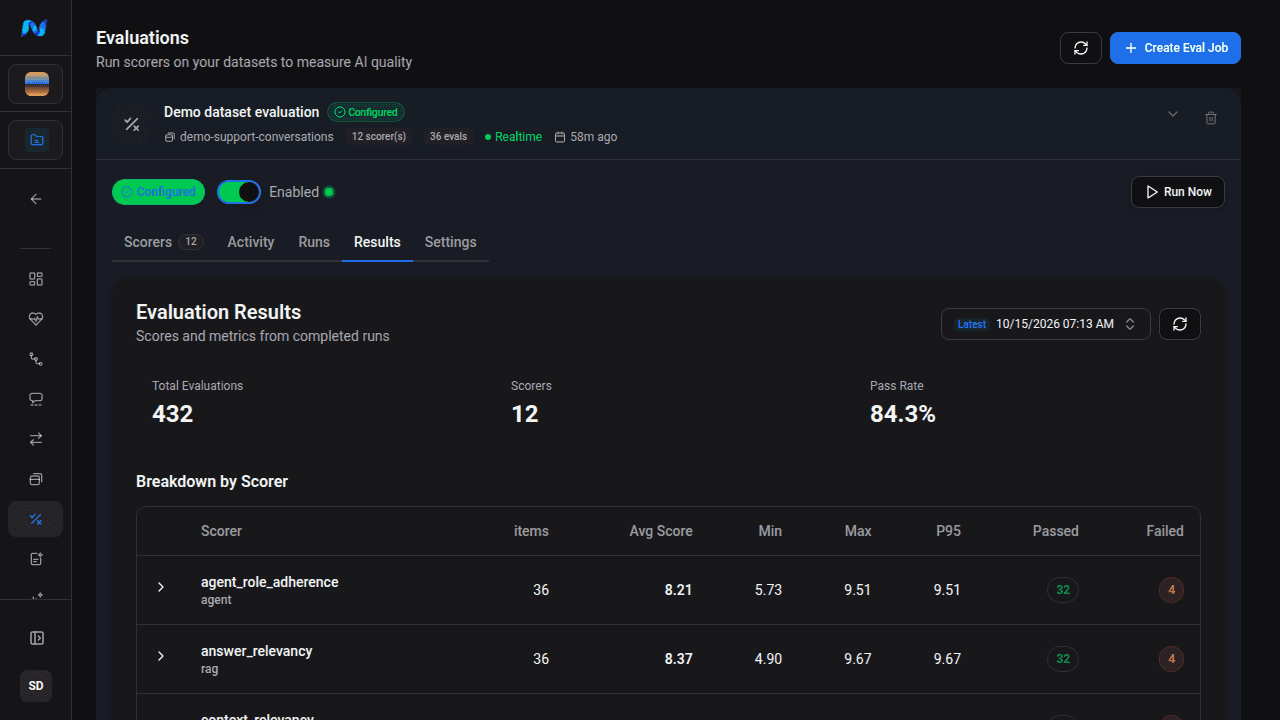
The Results page defaults to the latest completed run. Use the run selector to choose another completed run or All runs mixed, then use refresh to reload the selected scope. All runs mixed keeps the newest available result for each dataset item and scorer across the included runs. Choose a single run when you need a controlled release-to-release comparison.
The page includes:
- total scorer evaluations, scorer count, and pass rate
- per-scorer item count, average, minimum, maximum, P95, passed count, and failed count
- item-level score, pass/fail state, execution time, error, source trace, and judge reasoning when available
Expand a scorer row to see its item results. The visible column controls can sort by item ID, score, pass/fail, execution time, or error. Expand an item with reasoning to read the judge explanation, and follow its source-trace link when you need the original span context.
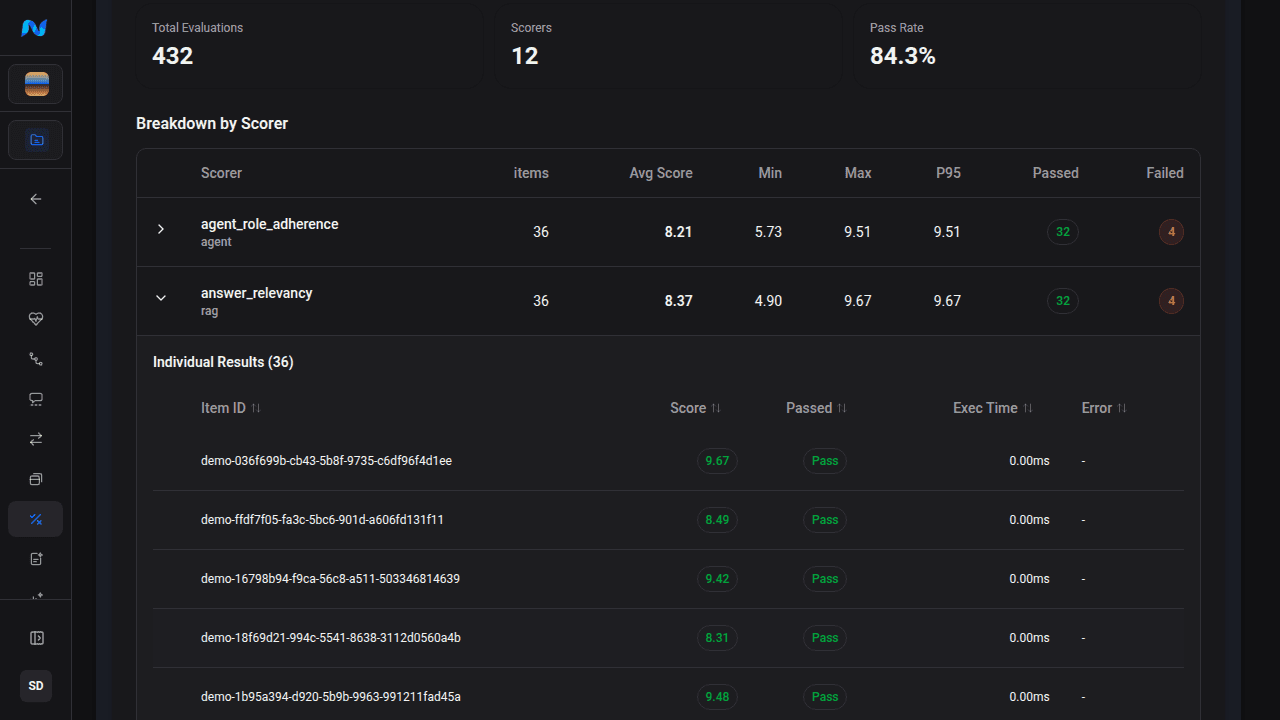
Remember that “total evaluations” counts scorer results. One item evaluated by five scorers contributes five evaluations.
Non-score sentinel values
-1means the scorer could not produce a result, commonly because required input is missing.-3means the judge response could not be parsed as a score.
Per-scorer averages, ranges, percentiles, and pass/fail metrics exclude negative sentinel rows and rows carrying a scorer error. The total result count and item table keep those rows for investigation. When a scorer has no valid results, its aggregate displays no value. Apply the same exclusions if you export raw results and calculate your own metrics.
agent_response, output_text, and message are cross-filled by StandardData where possible. A -1 still means you should inspect that scorer's complete required-field set - not assume output_text is always the problem.
Evaluate one item
Open a dataset item and choose Evaluate to run selected scorers against only that item. This creates an ad-hoc evaluation and is useful for validating fields or a custom scorer before a larger run. The five-premium-scorer minimum does not apply to this single-item path; each selected premium scorer still charges at its billing rate and the normal credit-balance check applies.
Expected result
A successful job has a reviewed dataset scope, reviewed scorer configurations, and a completed run whose recorded item count, scorer count, and credit usage you can compare with the pre-run estimate. The dataset remains live while a run is processed, so treat the preview as an estimate rather than an immutable run snapshot. The Results tab can move from aggregate statistics to scorer drilldown, item reasoning, and the originating source trace.
Troubleshooting
| Symptom | What to check |
|---|---|
| Create action is disabled | Job name, populated dataset, at least one selected scorer, and any incomplete scorer configuration |
| Realtime items are not evaluated | Confirm the job is enabled, the item is new and eligible, the saved scorer set is valid, and the organization has enough credits |
| Preview returns no eligible items | Date/count scope, item filters, score comparisons, and Skip already evaluated |
| Skip and Force are both requested through an API client | Send only one as true; the API rejects that invalid combination |
| Run is blocked by quota | Reduce the item population or Premium-scorer count, then review the live estimate |
| A scorer row has errors or no valid average | Inspect item reasoning, mapped fields, provider access, and sentinel rows |
| Results look inconsistent across releases | Select one completed run rather than All runs mixed and compare the saved configuration |