
Demo workspace
Import the synthetic support-agent demo, verify each seeded asset, and understand where sample data stops and your own integration begins.
The demo import gives an empty organization a synthetic tracing-to-evaluation example. It creates a project named Demo so you can learn navigation before your own application sends telemetry.
Demo data does not connect your application, validate an API key, or complete the real onboarding flow. Continue with Quick SDK setup after exploring it.
Start the import
When creating an organization, leave Add sample data to explore selected.
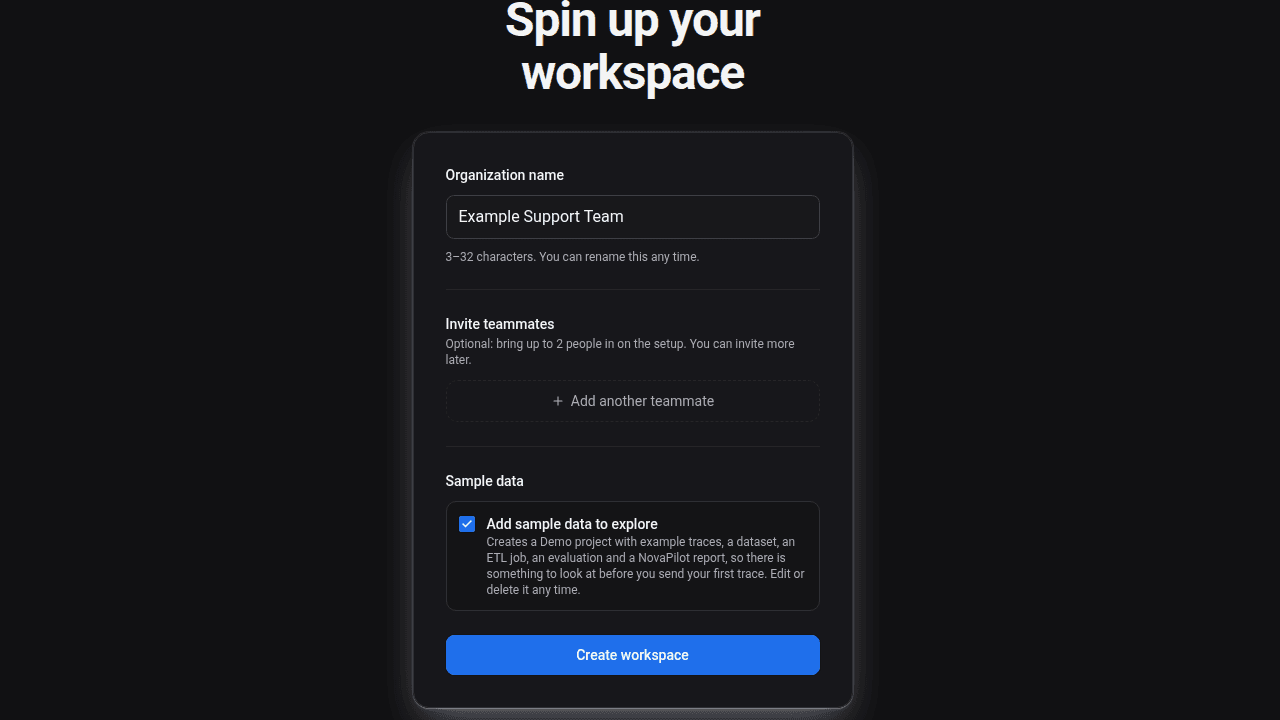
For an existing organization with no traces and no demo project, use the Import demo data banner when it appears. Dismissing the banner hides the offer in that browser for 30 days; it does not create or delete data. The offer stops appearing after the organization receives real traces.
The import runs in the background. You can navigate while it completes, but counts and snapshot-backed cards can appear after the project row.
What the demo creates
| Asset | Expected synthetic content |
|---|---|
| Project | Demo, project ID demo, environment production. |
| Traces | 40 support conversations from 10 fixed scenarios across a 90-minute window. |
| Trace metadata | Service demo-support-agent, service version 1.4.0, users, sessions, model, retrieval and tool examples, tokens, latency, and estimated cost. |
| Dataset | Published Demo support conversations, slug demo-support-conversations, type agent. |
| Dataset items | 36 items, one for each successful trace. Four intentionally errored traces are excluded by the mapper. |
| ETL | Configured Demo conversation mapper, code version 1, and a completed run over 40 traces. |
| Evaluation | Enabled Demo dataset evaluation, a completed run over 36 items, and 12 scorer configurations with a pass threshold of 7. |
| Scorer results | 432 deterministic sample results: 36 items multiplied by 12 scorers. |
| NovaPilot | One completed recommendation report based on the demo dataset and results. |
| Analytics | A project analytics and Health snapshot refresh is queued after seeding. |
The scenarios cover refunds, order status, password reset, shipping delay, cancellation, product recommendations, a billing dispute, API authentication failure, SDK troubleshooting, and a plan upgrade. Each appears four times. The four API authentication traces intentionally have error status, which is why 40 traces become 36 dataset items.
Verify the import
Open Projects > Demo after the progress indicator finishes.
1. Check project and trace scope
Project Overview should show activity. Open Traces, set the environment to production, and confirm that the project-scoped table contains the synthetic support traces. Four support.conversation.api_error traces should have error status.
Use Project Traces to inspect the flat table and detail sheet or Explorer to learn the organization directory.
2. Check the dataset and Runs
Open Datasets and select Demo support conversations. Confirm the published version and 36 items. Then open Runs, choose the same dataset, and compare a mapped transcript with its checks and source trace.
Runs reads the latest available dataset-scoped results. It does not create new evaluation results. See Review evaluated Runs.
3. Check ETL
Open ETL Jobs > Demo conversation mapper. The completed run should report 40 processed traces and 36 created items. The difference is expected because the mapper excludes the four intentionally errored conversations.
Open the mapper editor and preview a synthetic trace before changing code. Preview runs the editor content against the selected trace; saving creates or updates the mapper version. See Build and test an AI mapper.
4. Check evaluation
Open Eval Jobs > Demo dataset evaluation, then open its completed run and Results. The sample uses deterministic seeded results rather than live judge-model calls during import.
There should be 432 scorer results when all 36 items and 12 configured scorers are present. That number is scorer-item outcomes, not eval-job executions. See Set up, run, and review an eval job.
5. Check NovaPilot
Open NovaPilot > Reports and select the completed demo report. It summarizes seeded results and offers recommendations for investigation.
NovaPilot does not edit code, change prompts, or open pull requests. Your team decides whether to apply a recommendation through its normal ticket, branch, review, and deployment process. See NovaPilot recommendations.
6. Check snapshot-backed views
Project Health and organization Analytics can finish after the other assets. Use Update now when the current snapshot predates the import, then wait for the update before comparing counts.
Route map
Replace {organizationSlug} with the slug in your application URL.
| Destination | Route |
|---|---|
| Demo project | /app/{organizationSlug}/projects/demo |
| Project Traces | /app/{organizationSlug}/projects/demo/traces |
| Demo Runs | /app/{organizationSlug}/projects/demo/runs/demo-support-conversations |
| Demo dataset | /app/{organizationSlug}/projects/demo/datasets?dataset=demo-support-conversations |
| ETL jobs | /app/{organizationSlug}/projects/demo/etl-jobs |
| Eval jobs | /app/{organizationSlug}/projects/demo/eval-jobs |
| Project Health | /app/{organizationSlug}/projects/demo/health |
| NovaPilot reports | /app/{organizationSlug}/projects/demo/novapilot/reports |
| Organization Analytics | /app/{organizationSlug}/analytics |
ETL job, eval job, and report detail routes contain generated IDs. Open those records from their list pages rather than constructing a URL.
What is not created
The demo does not create:
- an SDK connection to your application or proof that your API key works;
- provider credentials, organization API keys, members, or invitations;
- custom scorers, runtime policies, alerts, or schedules;
- NovaSynth connections, personas, scenarios, test matrices, or runs;
- production data or live model calls during import;
- a durable evaluation policy for your product.
If the import looks incomplete
- Wait for the background progress indicator to finish.
- Refresh the Projects directory and the relevant list page.
- Check the project, traces, dataset, ETL run, eval run, report, and snapshot in that order.
- Do not repeatedly start the import or create a second project named Demo.
- Contact support@noveum.ai with the organization slug if assets remain incomplete.
When you are ready for real data, send one trace, verify it in Project Traces, and follow The closed-loop workflow.