
Set up NovaSynth
Describe the agent, save its configuration, and connect NovaSynth to it.
The first time you open NovaSynth for a project, Overview shows a four-step setup checklist. Start with the agent configuration. You can save it without a connection, but an active connection is required before a test can run.
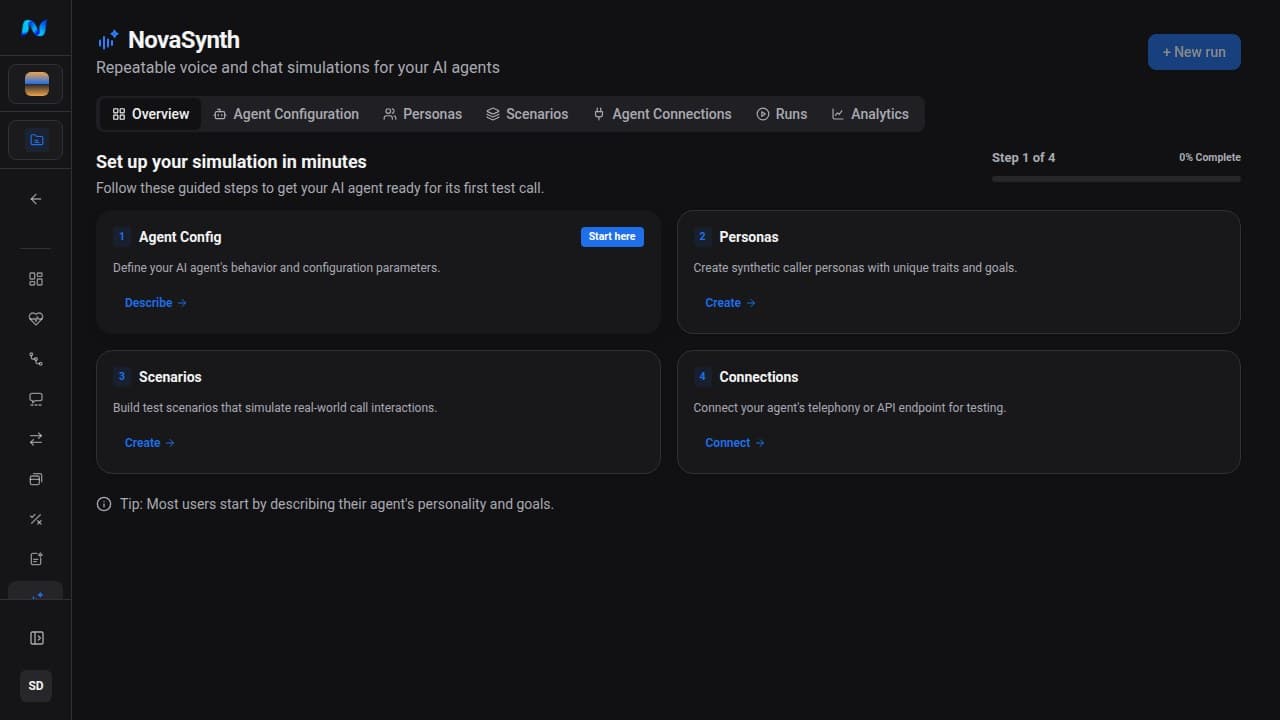
Step 1: Describe the agent
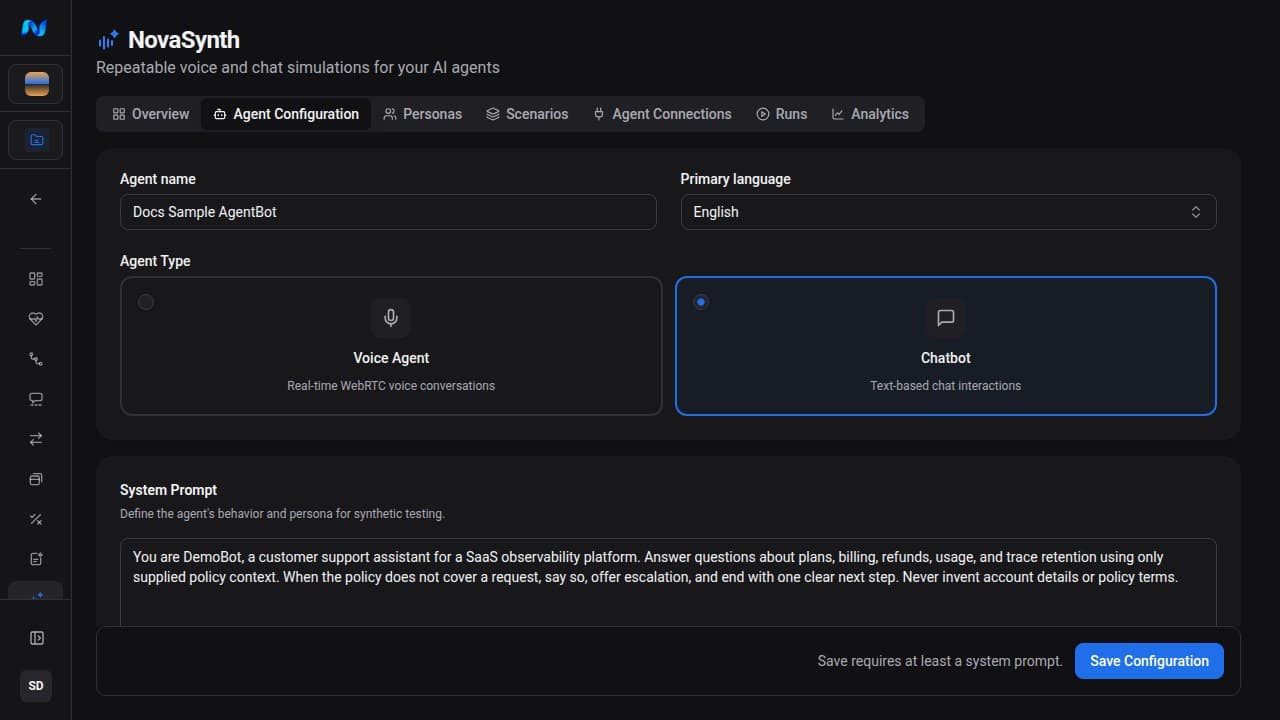
| Field | What to enter |
|---|---|
| Agent name | A recognizable display name for the agent under test |
| Primary language | The main language expected in synthetic conversations |
| Agent Type | Voice Agent for LiveKit and phone connections, or Chatbot for HTTP Chat |
| System Prompt | The agent's complete operating instructions; this field is required |
| Additional Instructions | Optional testing focus, domain context, or edge cases used during AI generation |
The system prompt feeds persona and scenario generation, so a complete prompt produces more relevant test coverage. Remove secrets, personal data, and internal-only values before saving it.
How NovaSynth uses this context
NovaSynth uses the saved prompt to pre-fill later Generate with AI jobs, and persona generation also pre-fills the saved additional instructions. A persona job proposes synthetic users whose goals and behavior fit the agent. A scenario job proposes situations and conversation steps that exercise the agent's stated responsibilities and boundaries.
Generated records are editable drafts. Review them for duplicates, unrealistic assumptions, sensitive data, and coverage gaps before running them. Generating a persona or scenario does not contact the configured agent and does not change the agent's prompt or implementation.
Step 2: Connect the agent
Open Agent Connections from the Connections card and click Add Connection. The dialog offers the three connection types the NovaSynth worker can run:
- LiveKit for a LiveKit voice-agent deployment;
- Phone (SIP) for an agent reachable by phone;
- HTTP Chat for a text agent exposed over HTTP.
Credentials are saved only when you submit the dialog. See Agent connections for each form.
The endpoint REST API can persist additional connection record types, but the dashboard does not expose them and the current automated-run worker cannot dispatch to them. See the connection support matrix before building an API-based integration.
Assets created during setup
The first saved agent configuration also provisions the project assets NovaSynth uses behind the scenes:
- a
novasynth-{projectId}dataset; - an enabled ETL job that maps synchronized conversations into that dataset;
- an ad-hoc eval job with the default NovaSynth success-criteria scorers.
The dataset and ETL job appear in the project's ordinary Datasets and ETL Jobs views. The eval job is NovaSynth-managed and intentionally hidden from the ordinary Eval Jobs list. Treat all three as linked NovaSynth infrastructure: deleting or repointing the visible dataset or ETL job can prevent later runs from building dataset items or completing evaluation.
Complete the checklist
After setup, Overview tracks four guided steps:
- Agent Config: save the agent configuration;
- Personas: add a persona;
- Scenarios: add a scenario;
- Connections: add an active agent connection.
Use the action on each unfinished step to open its page. When all four are complete, Overview offers Create your first run.
Before the first run
- Point the connection at a test or staging deployment when possible.
- Confirm you are authorized to call any configured phone number.
- Use one persona-scenario pair, concurrency
1, and a short voice duration limit. - Select only the scorers needed for the first connectivity check.
- Inspect the transcript and errors before increasing the batch size.