
Run tests and review results
Build persona-scenario test cases, launch a NovaSynth batch, inspect individual results, and share a report.
The Runs page is the central place to create and review NovaSynth batches. Each test case is one explicit persona-scenario pair and becomes one individual run.
Before you start
You need:
- a completed NovaSynth agent setup;
- at least one persona and one scenario;
- an active LiveKit, Phone, or HTTP Chat connection;
- organization credits and NovaSynth access;
- scorers from NovaSynth's linked eval job if you want pass rates and evaluation analytics.
The scorer list comes from the eval job associated with the NovaSynth agent configuration. If the list is empty, you can still exercise the agent, but scored results and pass-rate charts will not be available.
Create a batch
Click New Test Batch on NovaSynth → Runs to open the four-step wizard. Next stays disabled until the current step is valid, and Launch run on the last step creates and starts the batch.
The run mode follows the agent type saved in Agent configuration. A chat agent runs in Text mode and the wizard lists only HTTP Chat connections. A voice agent runs in Voice mode and the wizard lists LiveKit and Phone connections. An HTTP Chat connection always runs in Text mode, and an inbound Phone connection always runs in Voice mode.
A batch supports up to 1,000 runs. The Test cases step shows how many runs remain. Start with a small set; increasing concurrency also increases simultaneous runs and provider demand.
The server checks available organization credits before it creates the batch. A text conversation is estimated at 12 credits per pair. For voice, the per-pair estimate is ceil((maximum duration in seconds / 60) × 100) credits. For example, a 90-second limit is ceil(1.5 × 100) = 150 credits per pair. This is a quota estimate based on the duration cap, not a promise that every call will use the full time.
Run options
| Option | Available values | Effect |
|---|---|---|
| Batch name | Required, up to 200 characters | Identifies the batch in Runs, reports, and comparison views |
| Notes | Optional text | Records the purpose, release, or expected coverage |
| Test type | Optional tag | Labels the batch on the Runs page |
| Test cases | Up to 1,000 persona-scenario pairs | Creates one individual run for every pair |
| Scorers | Scorers linked to NovaSynth's eval job | Chooses which scorers evaluate each run |
| Mark as critical | Any selected scorer | Chooses which scorers decide pass rates |
| Connection | Active project connections that match the agent type | Chooses the endpoint every pair will exercise |
| Concurrency | 1 to 20, default 1 | Limits how many individual runs execute at once |
| Max call duration (s) | 60 to 1800 seconds, default 300 | Stops an individual voice run at the selected cap; voice mode only |
Choose scorers
Only the scorers you select run for the batch. Critical scorers decide the outcome:
- A run passes when every critical scorer passes.
- When no scorer is marked critical, every selected scorer must pass.
- Scorers you select but do not mark critical still appear on each run as Additional Scorers. They are tracked but do not affect the verdict.
Select preset offers Recommended, the product's suggested scorer set, and up to five scorer selections from previous runs. A previous-run preset also restores which scorers were critical. Marking more scorers as critical can lower the pass rate because every critical scorer must pass.
Inbound batches
Select an inbound Phone connection to test an outbound bot. After the batch is created, the Run IDs dialog lists every run ID with Copy all and Copy run id actions. Your dialler claims each run and calls its assigned Noveum number. To place one call by hand, click Get number on the run's row in the batch's All Runs table, then dial the number shown before its window closes. These batches use Voice mode; follow the inbound calls guide for the claim and dial workflow.
Batch lifecycle
Batch status can be Queued, Running, Completed, Partial Failure, Failed, or Cancelled. Individual runs additionally pass through Dispatching, and inbound runs can show Waiting for call or No call received.
While a batch is queued or running, Cancel batch in the Runs row menu and Cancel Batch on the batch detail page stop its queued and in-progress runs. A completed batch can be duplicated from the Runs row menu with Duplicate batch, and Rerun Test on the batch detail page does the same for any batch. Both open Duplicate Test Batch, which creates and immediately starts a new batch with the same personas, scenarios, and settings. Failed runs and inbound runs that received no call expose Retry run.
Search the Runs list by batch name, open Filters to narrow it by status or date range, or click Refresh. Each row shows the batch's pass rate, run count, success metrics, average duration, and average turns.
Analysis lifecycle
After a completed interaction, NovaSynth builds a dataset item, posts it to the dataset, and runs evaluation. A run's analysis shows Analysis is pending..., Building dataset item..., Posted to dataset., Evaluation in progress..., Analysis complete, or Analysis failed.
If the interaction completed without a synthetic trace, analysis fails because ETL cannot build the dataset item. Scorer or provider failures can also leave execution completed while analysis fails.
Inspect a batch
Open a row from Runs after it starts. The batch detail page contains:
- a header with the batch's mode, agent, connection, and direction, plus Show details for the full configuration;
- Total Runs, Execution Summary, Pass Rate, and Critical Scorers cards;
- Scorer Breakdown, grouped by scorer category, with Only Critical and All views;
- a NovaPilot Analysis card;
- a persona-by-scenario Run Matrix;
- an All Runs table.
Pass Rate counts the evaluated runs that passed all critical scorers. Critical Scorers shows how many of the batch's selected scorers are marked critical.
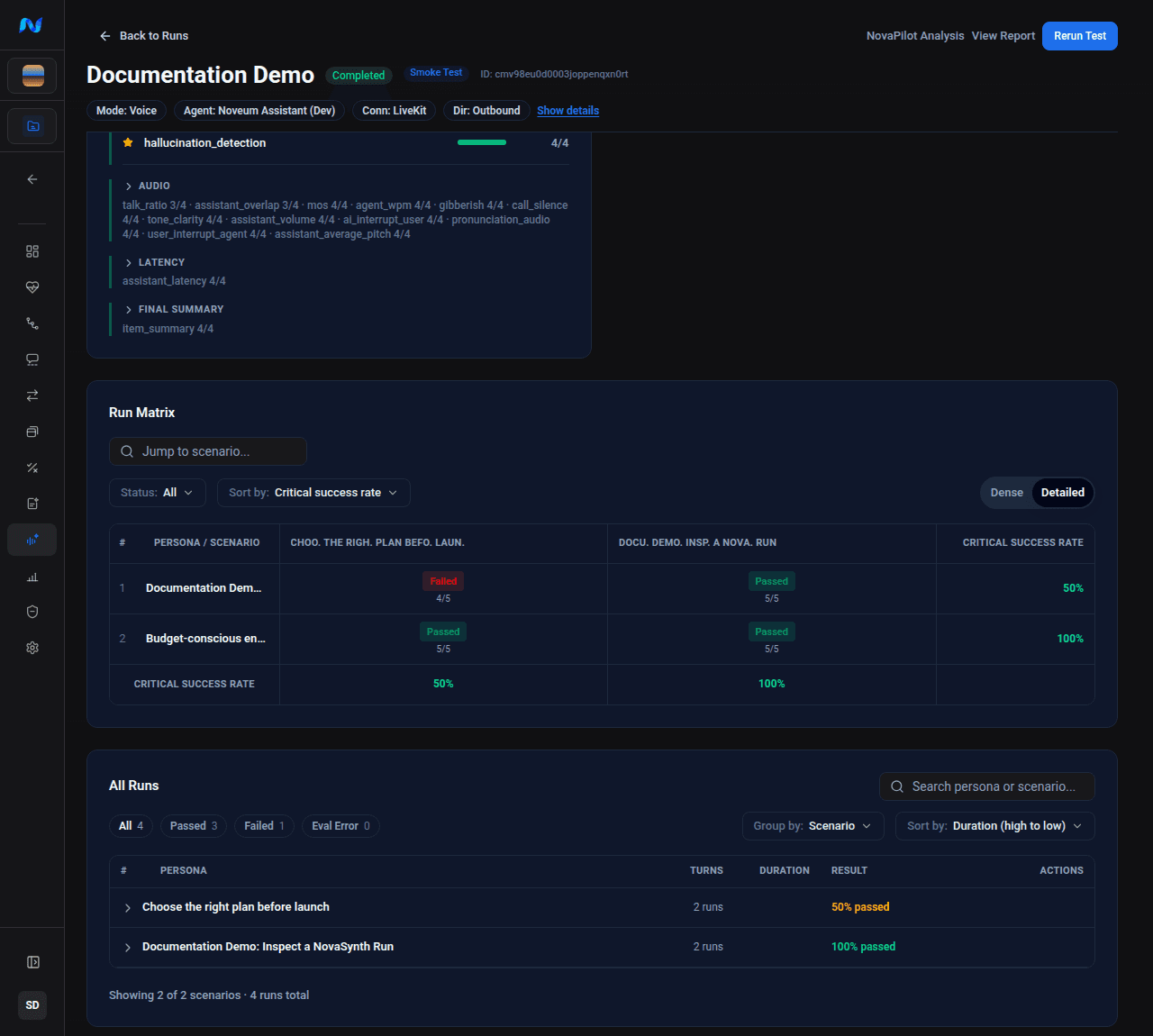
Run Matrix
Each cell is one persona-scenario run, marked Passed, Failed, Error, or Evaluating, with the number of criteria met. Each row and the footer show the critical success rate. Use the toolbar to:
- jump to a scenario or filter by scenario category;
- filter by Status:;
- sort by Critical success rate;
- switch between Dense and Detailed cells.
Hover a cell to see its result and criteria met, then click it to open the run.
All Runs
All Runs groups runs by Scenario or Persona. Search by persona or scenario, filter by Passed, Failed, or Eval Error, and sort by duration, turns, or creation time. Expand a group and click View to open a run.
NovaPilot Analysis
Click Run NovaPilot Analysis on the card, or NovaPilot Analysis in the header, to analyze the batch with NovaPilot. The card shows the credits the analysis uses before you start. It needs an agent configuration, built dataset items, and scorer results. When the analysis completes, the card shows Overall Health, Traces Analyzed, Scores Evaluated, and Critical/High Issues, with a link to the suggested fixes in NovaPilot. If the analysis fails, click Retry.
Inspect one individual run
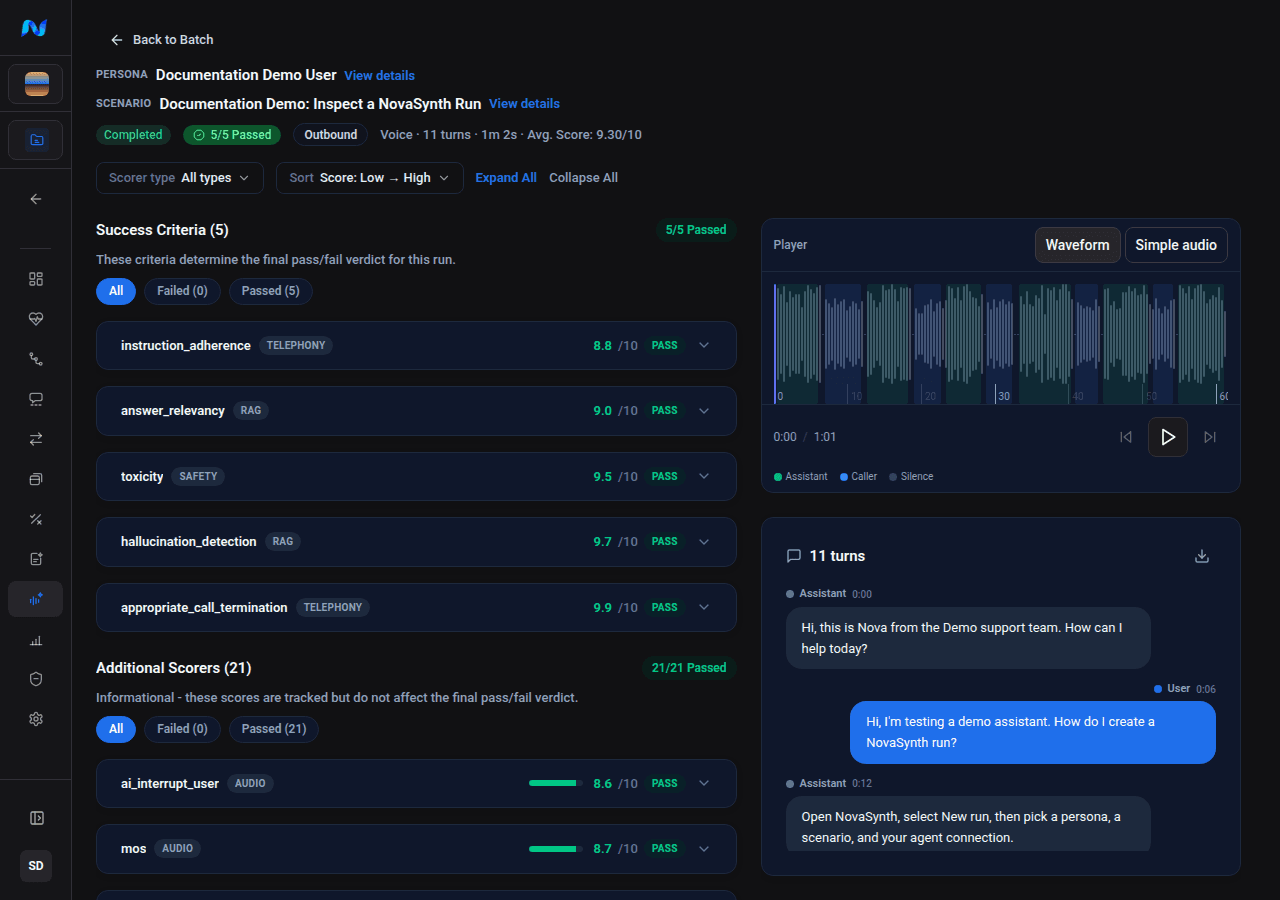
Open a run from the matrix or the All Runs table. The run page shows:
- the persona and scenario, each with View details;
- mode, turns or messages, duration, direction, and average score;
- recording playback for runs with audio, as a Waveform or Simple audio player;
- the transcript, with Download transcript;
- Success Criteria, the critical scorers that decide the run's verdict, and Additional Scorers, which are informational;
- the analysis summary and run summary;
- Retry run when the run failed or received no call.
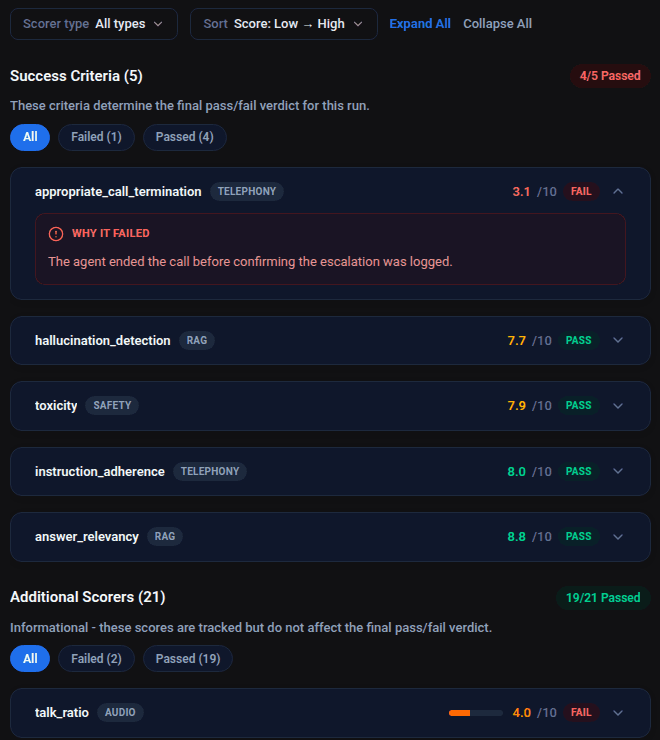
Do not infer a successful evaluation from a completed conversation alone. A run can finish the interaction while its dataset and scorer analysis are still processing.
Generate a report
Open the batch detail and click Generate Report in the header. While generation runs, the action shows Generating…; after completion it becomes View Report. If generation fails, click Generate Report again.
The Evaluation Report includes total runs, failures, average run duration, the all-criteria pass rate, average scores out of 10, and Individual Run Analysis. Each run's analysis lists its summary as bullets led by the recording times they cite, followed by a Test Setup block with the persona and scenario when the dataset carries simulation metadata. Voice runs also show conversation metrics, including STT word error rate when it was measured.
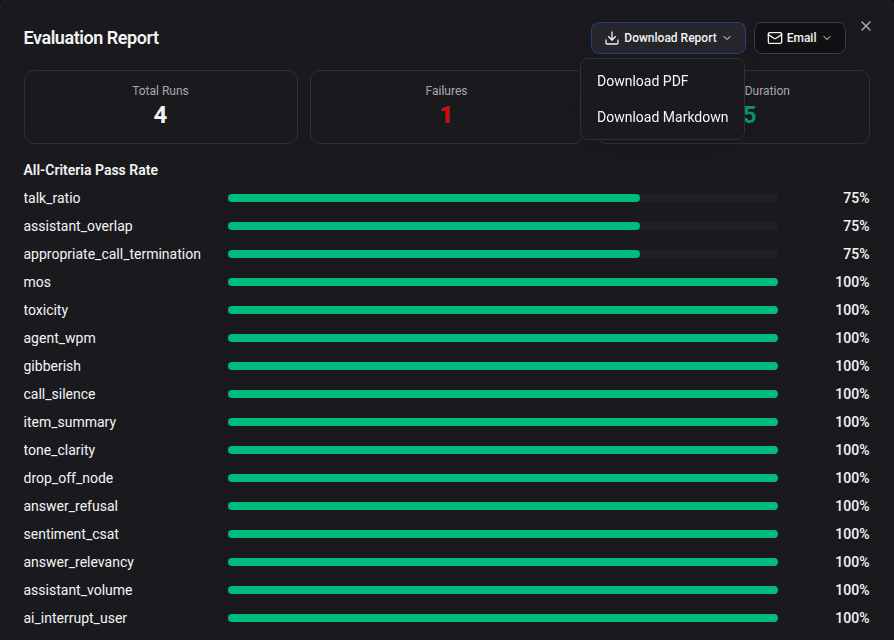
From the report dialog you can:
- download PDF as
novasynth-report-{batchRunId}.pdf; - download Markdown as
novasynth-report-{batchRunId}.md; - email the report to yourself with Send to me;
- email the report to the whole organization with Send to whole org.
Downloads use the interface language active when you generate them. For emailed reports, NovaSynth localizes the subject, body, and PDF for each recipient's stored language. The PDF cover identifies the batch, test mode, run totals, creation time, and organization so a downloaded or forwarded report retains its context.