
Scenarios
Define the situations and conversation steps each synthetic user should exercise.
A scenario describes what should happen in a synthetic conversation. Reuse a scenario across different personas to see whether the same workflow succeeds for different user behavior, language, and voice conditions.
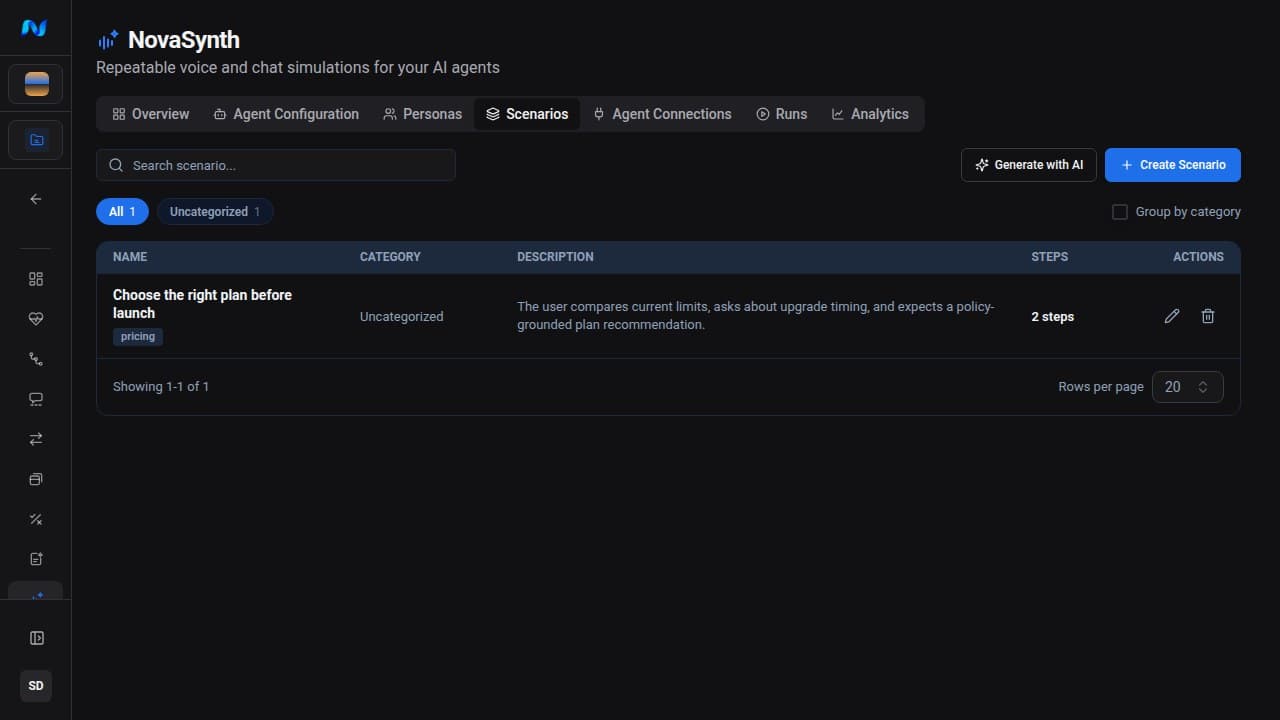
Create a scenario manually
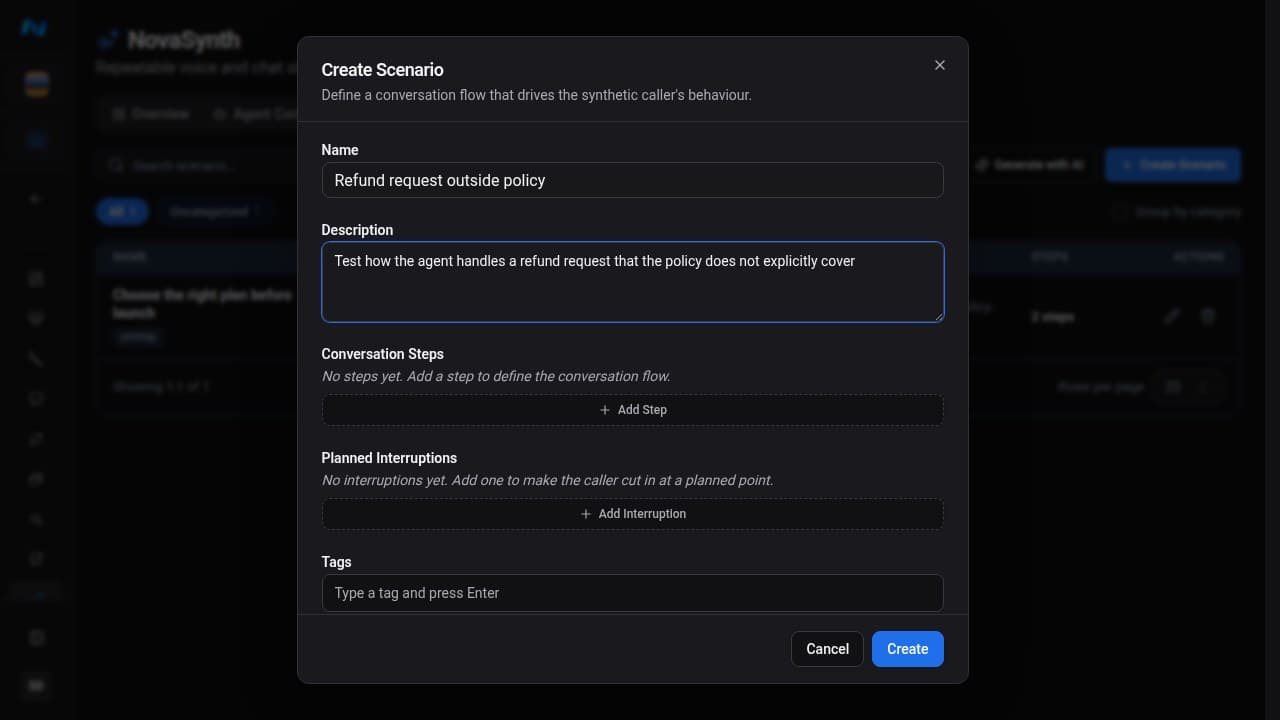
| Field | Use |
|---|---|
| Name | Required, concise label used in the run matrix |
| Description | What the test is intended to exercise |
| Conversation Steps | Ordered conditional actions for the synthetic user |
| Planned Interruptions | Points where the caller cuts in while the agent is talking |
| Tags | Labels for organizing scenario coverage |
| Category | Groups the scenario on the Scenarios page and in the run wizard; type a new name to create a category |
Click Add Step for each conversation event. A step has:
- an optional Condition, such as
agent asks for account number; - a required Action, the line the caller says, such as
I'd like to dispute a charge.
Use the move controls to reorder steps.
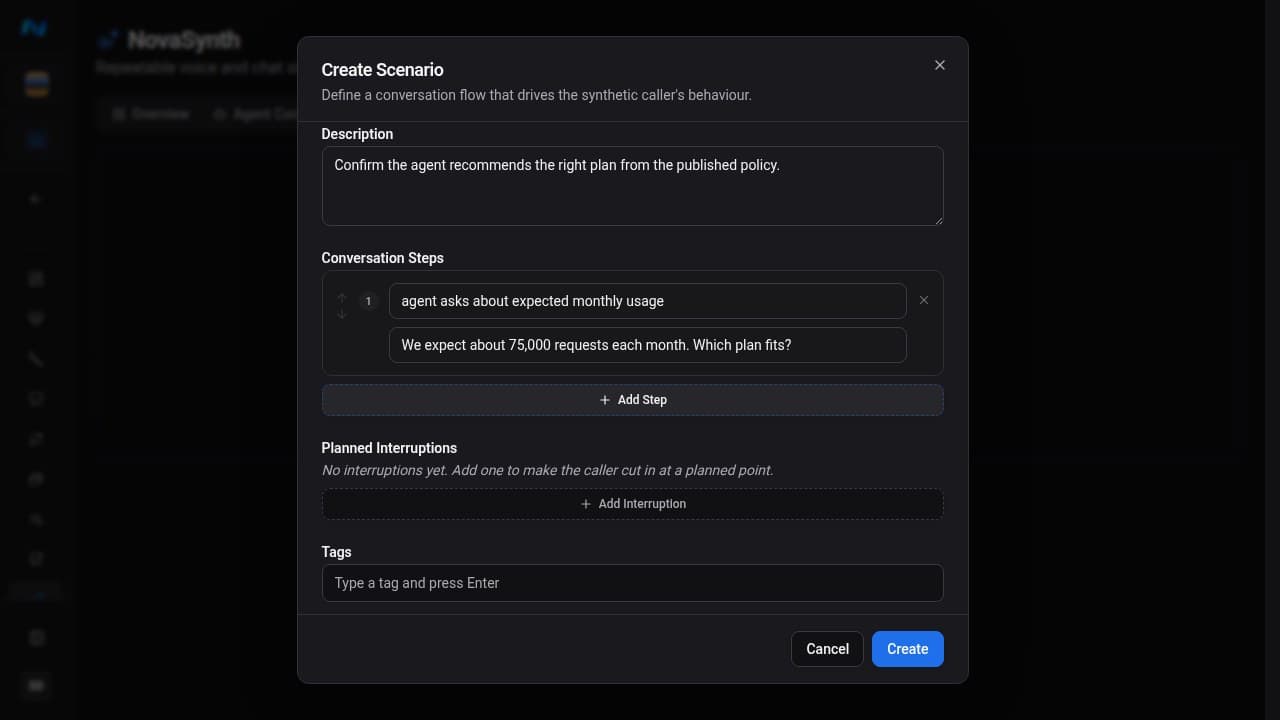
Keep conditions and actions explicit enough that the synthetic user can follow them from observable conversation events.
Plan interruptions
Each planned interruption makes the caller cut in while the agent is speaking. Choose a Type:
| Group | Types | What the caller says |
|---|---|---|
| Fixed line | Ask to repeat, Hold on, Talk to someone else, Hurry up, Can't hear you, Not interested | A fixed line for that type, once the agent has been talking for Threshold (seconds) |
| Generated | Ask a question, Correct the bot, Answer early | A generated line that gets the Intent across |
Then place the interruption:
- Marker turn is the agent turn near which the caller starts watching for a moment to cut in.
- Arm after event ties the interruption to a conversation step, so the caller cuts into whatever the agent says next after that step. When it is not set, NovaEval infers the moment from the description, which is less reliable.
- Window (turns) is how many agent turns the caller keeps trying.
- If missed chooses Force it on the next turn or Drop it when no good moment appears.
Interruptions are armed by marker turn, so an entry with a lower marker turn runs earlier even when it appears further down the list. NovaEval fires at most four interruptions per call and skips the rest.
Generate scenarios with AI
Generate with AI starts an asynchronous generation job using the configured agent prompt.
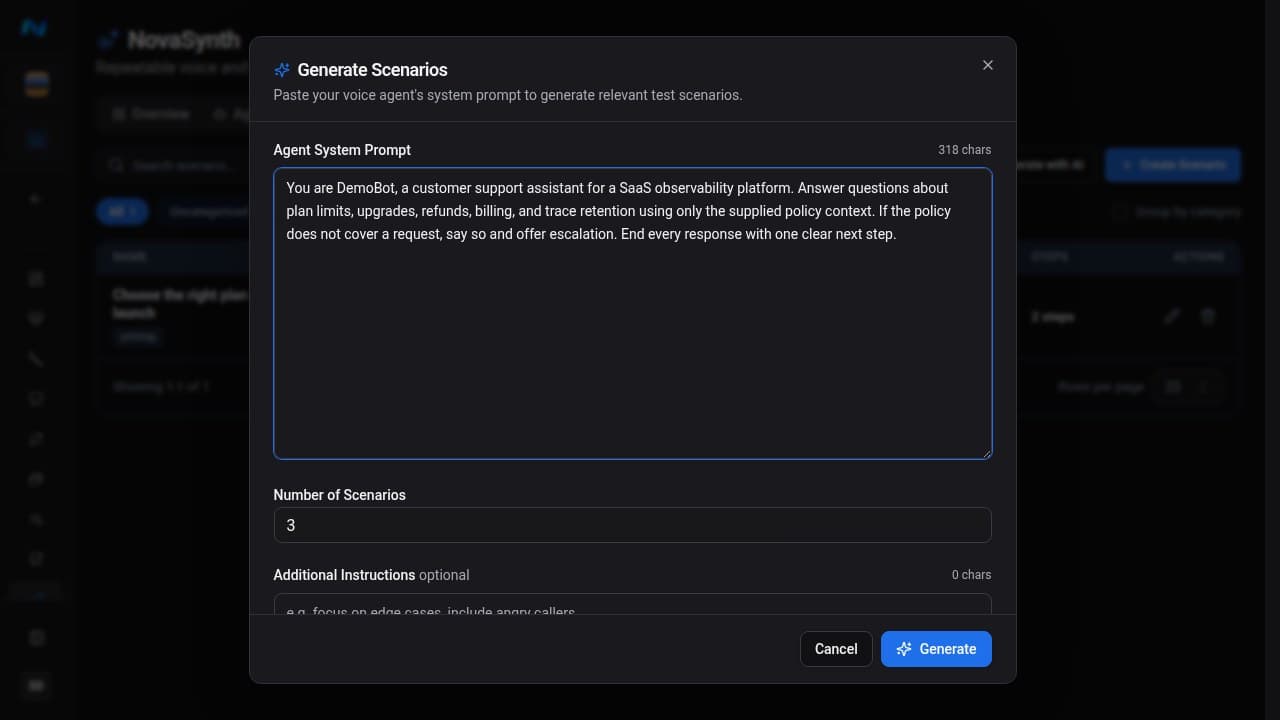
After submission, the Scenarios page displays the active generation job:
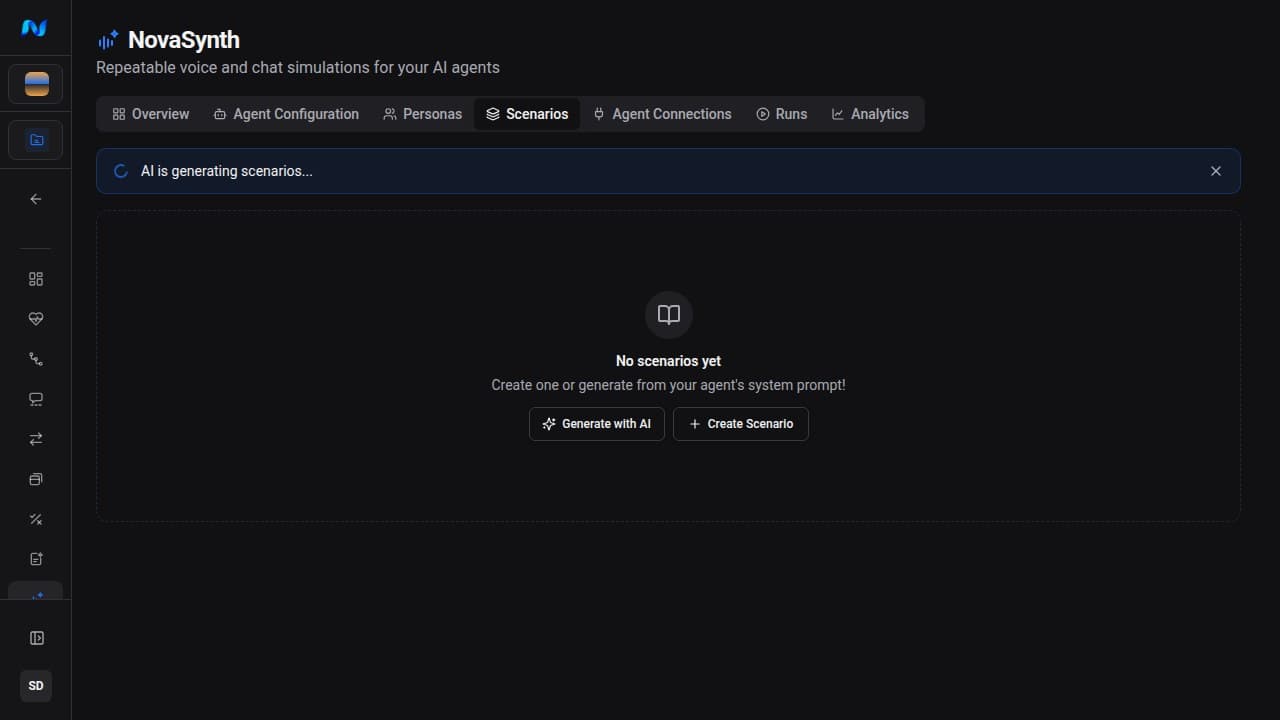
Generation proposes reusable test records; it does not contact the connected agent or start a batch. Review each draft for unsupported assumptions, duplicate coverage, impossible prerequisites, and steps that depend on information a synthetic user cannot observe.
Good instructions ask for distinct outcomes rather than near-duplicate wording. For example:
Generate a successful cancellation, an invalid-account case, a retention-offer objection, and a request outside the agent's allowed scope.
Review and organize scenarios
The list shows each scenario's name, description, step count, and category. Search it with Search scenario..., filter by category, or select Group by category while the All filter is active. Click a row to see the full scenario, including its steps and planned interruptions, or use the row actions to edit or delete it. A scenario that existing runs use cannot be deleted.
To run scenarios, open Runs → New Test Batch and pair them with personas in the Test cases step. See Run tests and review results.
Design useful coverage
- Include a clear happy path so connection failures are distinguishable from behavior failures.
- Add one expected refusal or out-of-scope case.
- Write observable steps instead of implementation details hidden from the synthetic user.
- Keep each scenario focused on one outcome.
- Use tags to separate regression, edge-case, language, or release-specific coverage.