
Reports
Track NovaPilot report status, interpret the analysis, and export or email completed reports.
Every manual or scheduled NovaPilot analysis creates a report record. Open Project → NovaPilot → Reports to see the dataset, creation time, status, analyzed-item count, and evaluated-score count for each run.
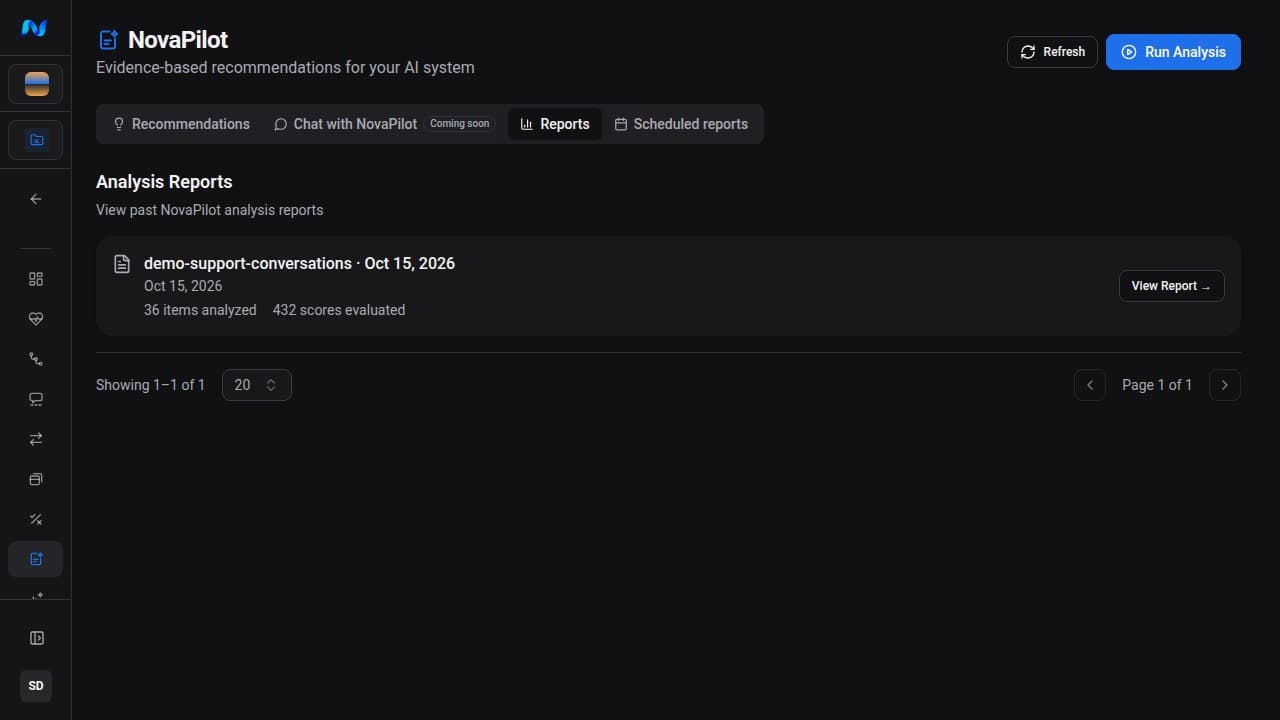
Open the right report
Report status
| Status | Meaning | Available action |
|---|---|---|
| Queued | The analysis is waiting to start | Open the report or cancel it |
| Processing | NovaPilot is analyzing the selected dataset items | Open the progress view or cancel it |
| Completed | The report is ready | View, export, or email it |
| Failed | The analysis stopped with an error | Read the error, then start a new analysis |
If a report says Completed but its analysis data is not ready, refresh after a moment. A completed record with invalid or missing analysis data is shown as an error rather than as an empty recommendation list.
Read the report
Overall health
The first card shows the grade, score out of 10, analyzed items, evaluated scores, total issues, and critical or high issues. It also identifies the dataset and version used for the report.
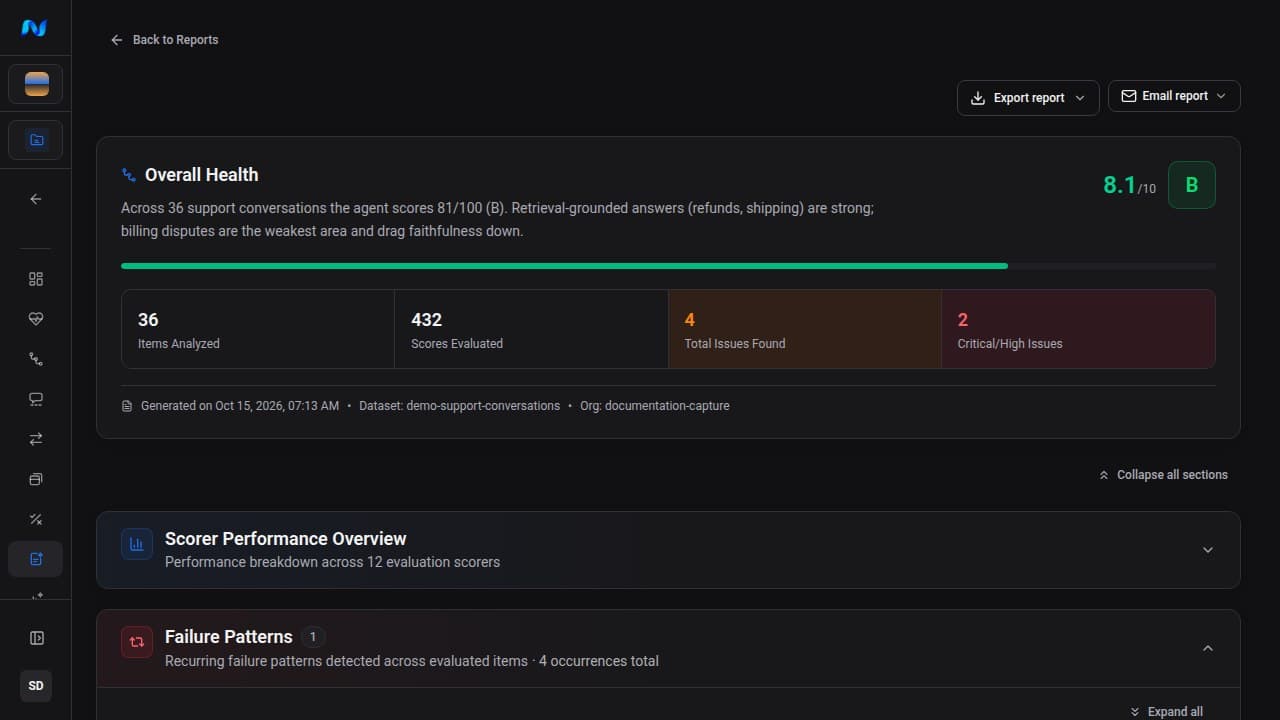
NovaPilot marks a report as Insufficient Data when the sample is too small for reliable analysis. Treat the grade as directional until the dataset has at least 50 items and 100 scorer results.
Scorer performance overview
This section separates the lowest and highest-performing scorers. It starts collapsed; expand it when you need scorer-level detail. Review mean score, failure rate, coverage, and validated failures together. Low coverage can mean the scorer did not receive enough applicable inputs; it does not necessarily mean the agent failed.
Failure patterns and system-prompt issues
Failure patterns group repeated issues and show affected items or traces. System-prompt findings include severity, evidence, and a recommended change when NovaPilot can identify one. Failure Patterns, System Prompt Analysis, and Actionable Recommendations start open. Use the report-wide Expand all or Collapse all control to change every section together.
Actionable recommendations
Recommendations describe an evidence-backed change for your team to investigate. Sort and filter them by scorer, then expand a row to inspect:
- priority and implementation effort;
- current behavior and the recommended change;
- expected impact and estimated score deltas;
- affected item and trace IDs;
- confidence and number of affected items.
Up to three P0 or P1 recommendations start expanded so the highest-priority evidence is visible first. Use Expand or Collapse for the visible recommendations, and Show 25 more when a report contains additional rows. Recommended changes render formatted Markdown or code in the report; copy actions place the underlying raw text on the clipboard.
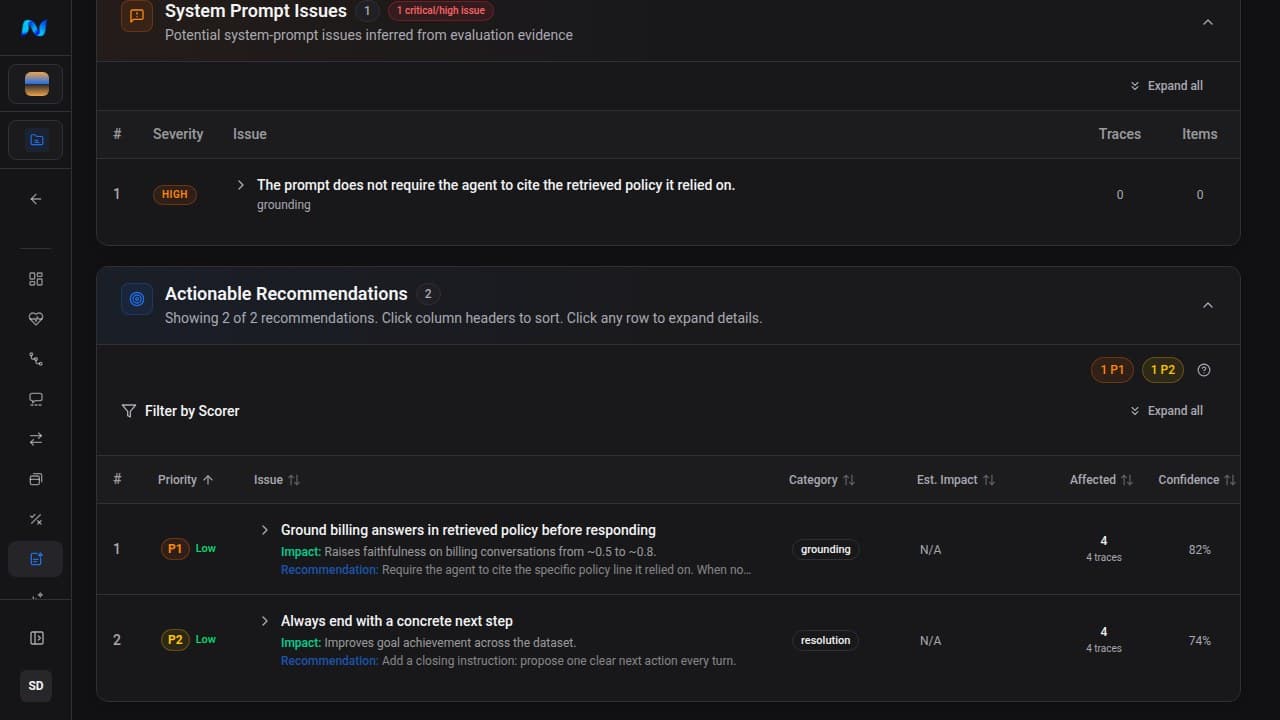
Use priority × confidence to choose what to investigate first. Copying a recommendation does not change your application.
A completed report does not implement changes. NovaPilot does not receive repository access, edit code, or open pull requests. Exporting, emailing, or copying a recommendation does not modify the analyzed agent or its deployment.
Export and email
Open the full report detail page to access all sharing actions:
- Export report → Download as PDF creates
novapilot-report.pdf. - Export report → Download as Markdown creates
novapilot-report.mdfor tickets, experiments, or internal notes. - Email report → To me sends it to your account.
- Email report → Whole organization sends it to eligible organization recipients.
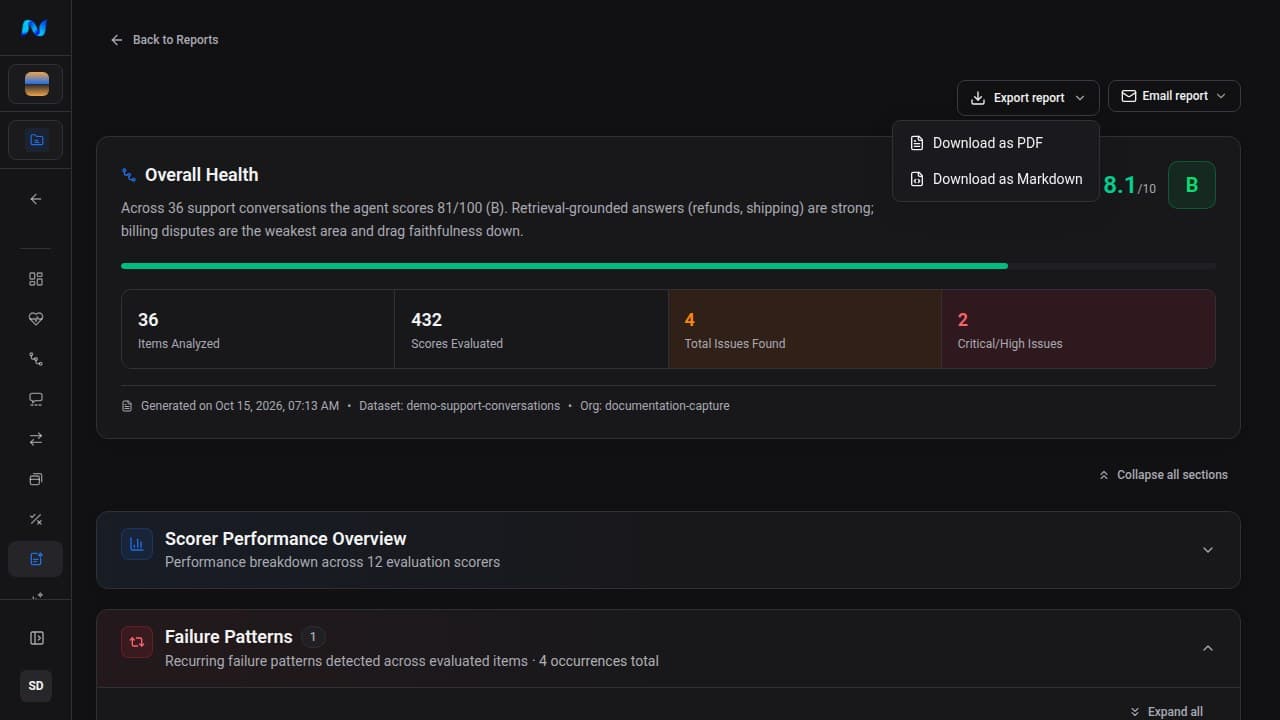
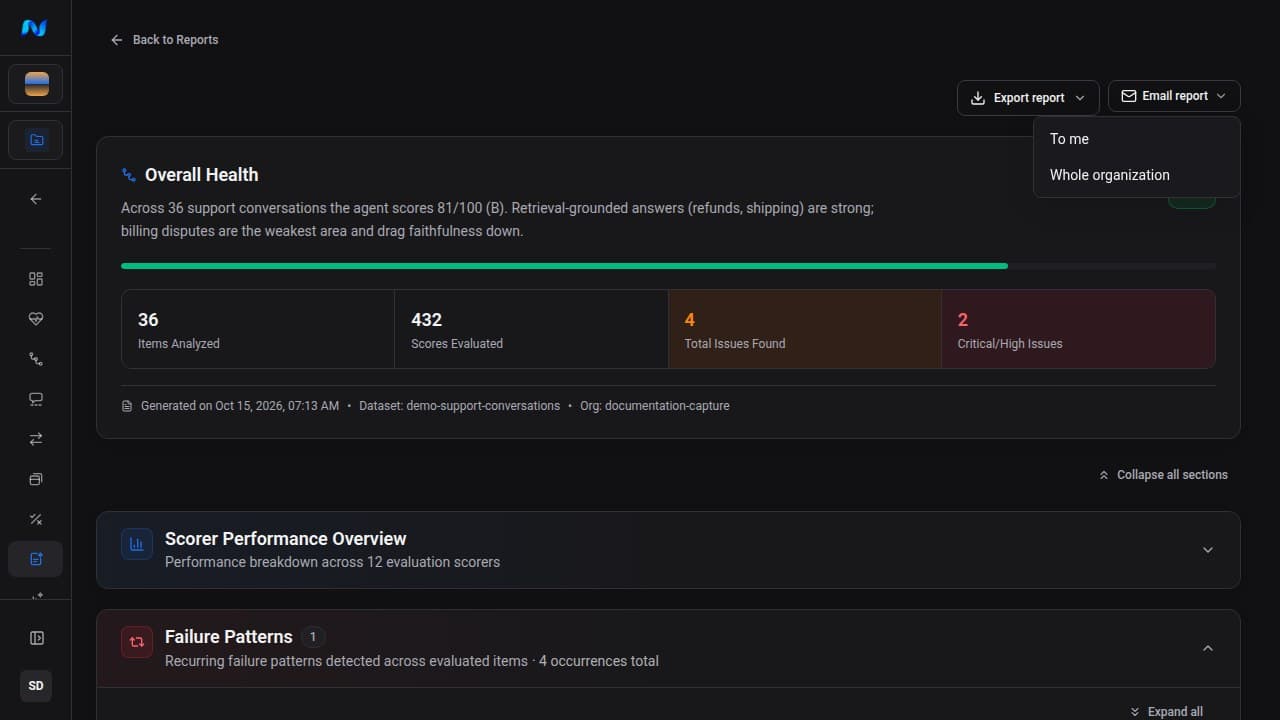
The Recommendations page also offers PDF and Markdown downloads for the selected completed report. Email controls are on the full report page. Generated exports follow the interface language active when you create them. Email delivery, scheduled delivery, and resends use each recipient's stored language, with the default language as a fallback.
Scheduled-run details record delivery results per recipient. A completed scheduled run also provides Resend Email Report without rerunning the analysis.