
Dograh Integration Overview
Connect your Dograh voice agents to Noveum: every completed call exports automatically as a full trace with transcripts, latency, tokens, and audio
Dograh is an open-source platform for building AI voice agents with a visual, no-code workflow editor. The Noveum integration ships built into Dograh as a workflow node: drop it into your agent's workflow, paste your Noveum API key, and every completed call is exported to Noveum as a structured trace, with no SDK setup and no code.
Each call arrives as a conversation trace with per-turn spans for STT, LLM, and TTS: transcripts, prompts and completions, token usage, per-service latency breakdowns, interruptions, and (optionally) per-turn audio segments plus a full stereo call recording for audio-level evaluation.
How it works
Dograh's voice engine is built on Pipecat, and the integration uses Noveum's Pipecat observer under the hood, so Dograh traces have the same span structure as the Pipecat integration, enriched with Dograh call metadata.
The export is post-call and bring-your-own-key:
- During the live call, Dograh records spans and audio locally; no Noveum network I/O touches the call path, so tracing adds zero latency to the conversation.
- When the call finishes, Dograh uploads the finished trace to Noveum using the API key configured on the node, then uploads the recorded audio segments.
- The trace appears in your Noveum project within moments of the call ending.
Prerequisites
- A Noveum account and API key (create one under Settings → API Keys in the dashboard)
- A running Dograh instance (cloud or self-hosted) with a voice agent workflow
Setup
1. Add the Noveum node in Dograh
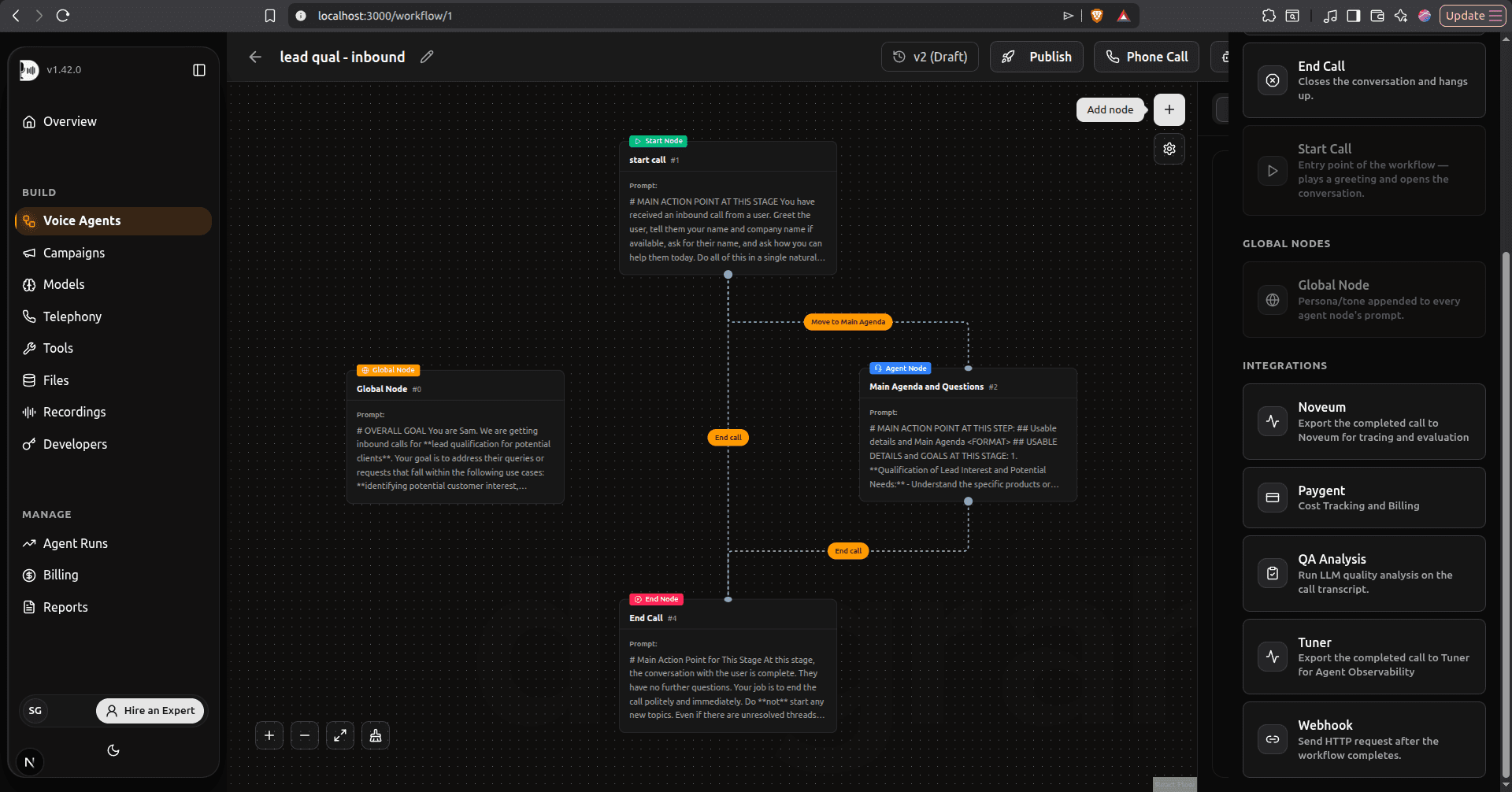
In the Dograh workflow editor, click Add node, scroll to Integrations, and select Noveum. The node is standalone; it doesn't connect to other nodes in the conversation graph.
2. Configure the node
Click the node and fill in:
| Field | Value |
|---|---|
| Noveum API Key | Your API key from the Noveum dashboard |
| Noveum Project | The project traces should land in (created on first export if it doesn't exist) |
| Noveum Environment | Environment label stamped on traces: production (default), staging, etc. |
| Record audio | Capture per-turn STT/TTS audio and the full-conversation recording (on by default) |
| Enabled | Toggle on to activate the export |
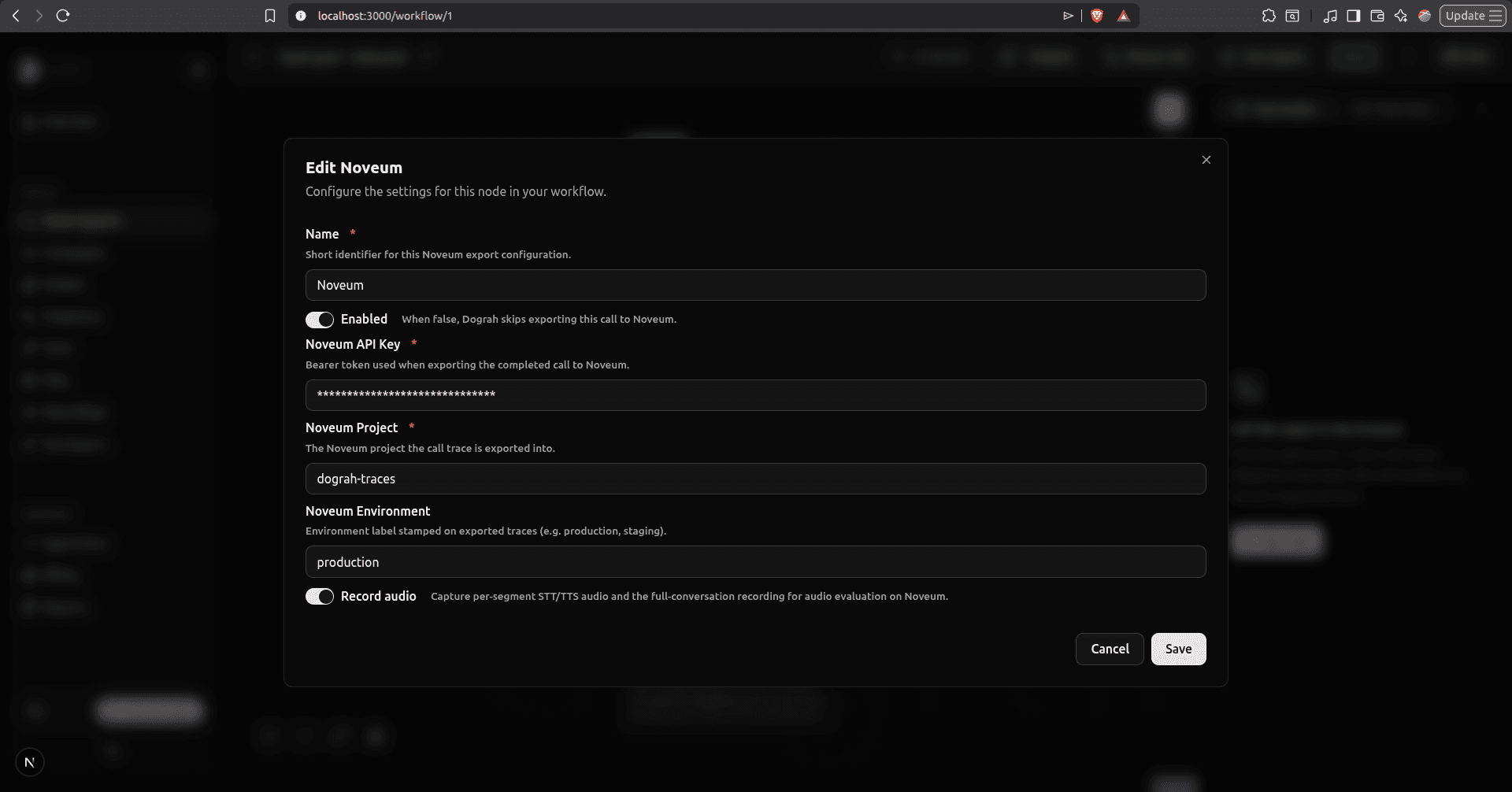
Click Save, then Publish the workflow.
3. Make a call and view the trace
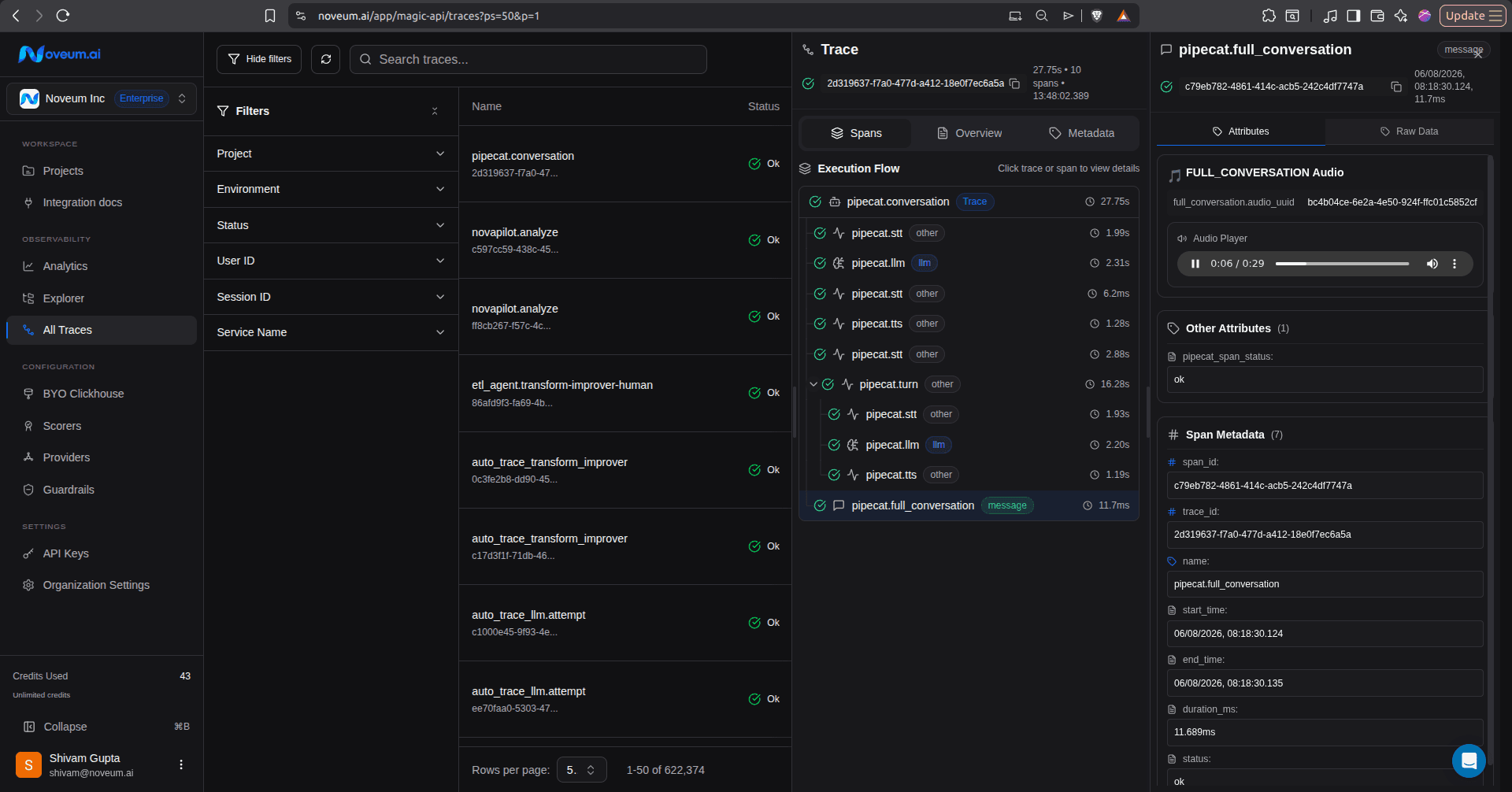
Run a test call through your agent. When it completes, open your project in the Noveum dashboard; the call appears as a new trace. Open it to walk the turn-by-turn timeline, inspect each STT/LLM/TTS span, and play back the captured audio.
What gets traced
Each call produces one conversation trace. The span tree matches the Pipecat integration, with Dograh-specific metadata on the trace:
Trace: pipecat.conversation
│   dograh.workflow_run_id, dograh.call_disposition
│   dograh.agent_version, dograh.mode, dograh.recording_url
│   stt.model_label, llm.model_label, tts.model_label
│   noveum.project, noveum.environment
│   conversation.total_input_tokens, conversation.total_output_tokens
│   conversation.turn_count, conversation.barge_in_rate
│
├── Span: pipecat.turn  (one per user→bot exchange)
│   ├── turn.user_input, turn.duration_seconds, turn.was_interrupted
│   ├── turn.user_bot_latency_seconds
│   ├── turn.latency.ttfb.<service>_ms  (per-service TTFB: stt, llm, tts)
│   │
│   ├── Span: pipecat.stt   - transcript, interim results, confidence, latency, audio
│   ├── Span: pipecat.llm   - message history, system prompt, output, tokens, tool calls
│   └── Span: pipecat.tts   - synthesized text, voice, TTFB, audio
│
└── Span: pipecat.full_conversation  (when Record audio is on)
    └── full-call stereo WAV: left channel = user, right channel = bot
With Record audio enabled, per-turn STT/TTS segments and the full recording are uploaded and attached to their spans, so audio scorers and playback work exactly as they do for SDK-based integrations.
Privacy & payload capture. Exported traces contain transcripts, prompts, completions, and optionally call audio. Review what your agent handles before enabling the export in production, and turn off Record audio if you don't want audio stored.
From traces to evaluation
Once Dograh calls are flowing into Noveum you can:
- Debug calls: replay any conversation turn-by-turn with synchronized audio and spans
- Build datasets: curate production calls into datasets for regression testing
- Score quality: run automated scorers over transcripts and audio to track agent quality across versions (the
dograh.agent_versionattribute is stamped on every trace)
Troubleshooting
- No traces appearing: confirm the workflow is published (not just saved), the node's Enabled toggle is on, and the API key/project have no stray whitespace.
- Trace has no audio: confirm Record audio is on in the node configuration.
- Calls that never connected show no trace: this is expected, since runs that fail before the pipeline starts (e.g. telephony errors) produce nothing to export.
Learn more
- Dograh's Noveum integration guide: the same setup from the Dograh side
- Pipecat Integration Overview: full span/attribute reference shared with this integration