Personas, Scenarios & Runs
Create AI-powered synthetic personas and scenario scripts, launch batch runs across all combinations, and analyze results in the run matrix and analytics dashboard.
Navigation
Inside a project, click NovaSynth in the sidebar. The sub-tabs are:
Personas
A persona describes the synthetic caller — their identity, goal, language, and behavioral traits. The NovaSynth LLM impersonates this persona during every session.
Creating a persona manually
Navigate to NovaSynth → Personas and click + Create Persona.
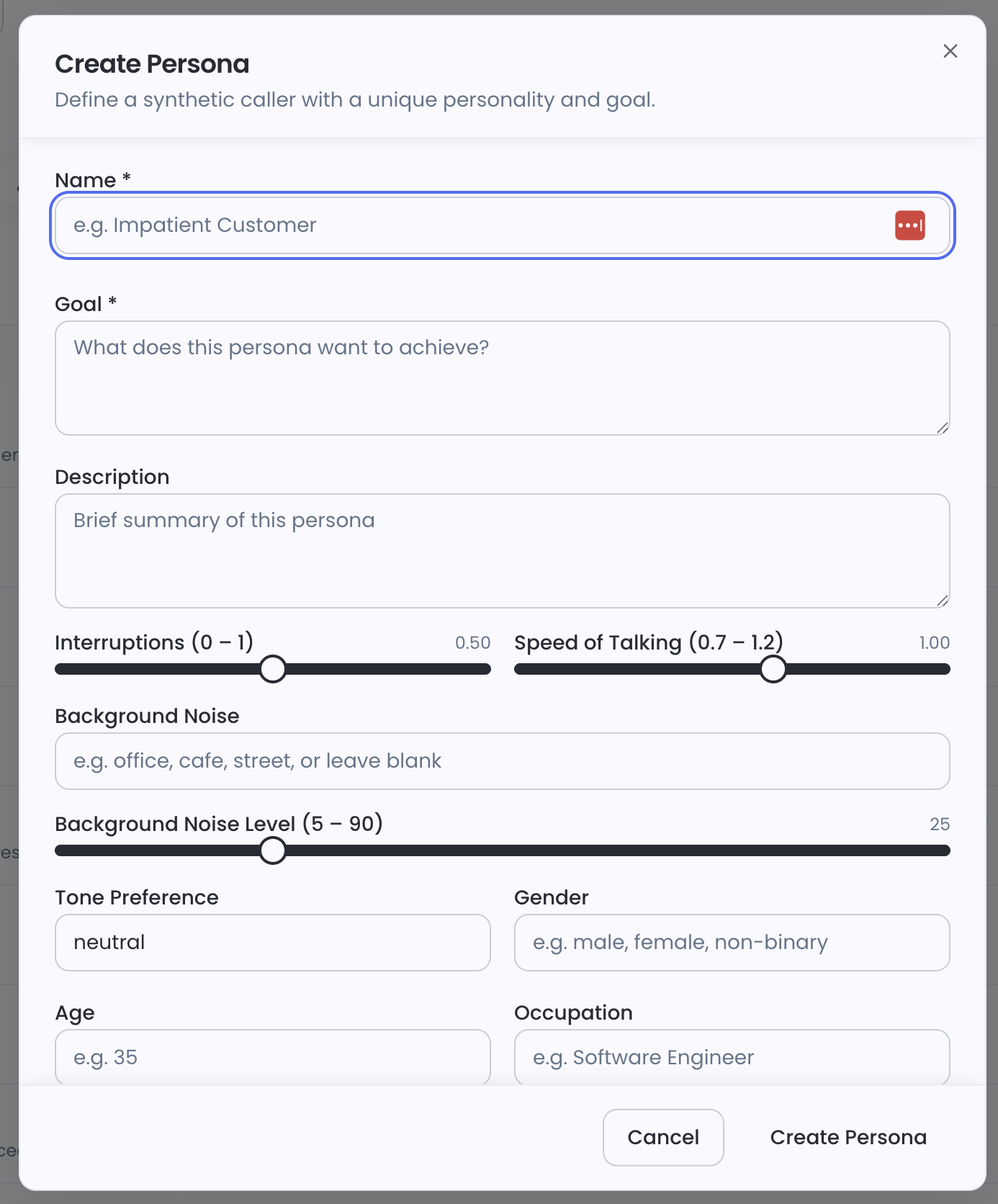
Persona fields
| Field | Description |
|---|---|
| Name ★ | Display name shown in the run matrix (e.g., Impatient Customer, Rajesh Kumar) |
| Goal ★ | What the synthetic caller is trying to achieve in the conversation |
| Description | Brief internal summary of this persona |
| Interruptions | How often the persona interrupts the agent — slider from 0 (never) to 1 (frequently), default 0.50 |
| Speed of Talking | Speech rate multiplier — slider from 0.7× to 1.2×, default 1.0× |
| Background Noise | Optional ambient noise type (e.g., office, cafe, street) |
| Background Noise Level | Noise volume — slider from 5 to 90, default 25 |
| Tone Preference | Overall communication tone (e.g., neutral, polite, assertive) |
| Gender | Optional demographic context |
| Age | Optional (e.g., 35) |
| Occupation | Optional (e.g., Software Engineer) |
★ Required fields.
Generating personas with AI
The Generate with AI button (Sparkles icon, top right of the Personas tab) creates multiple realistic personas in one shot from a plain-text description.
Browse Library
From the Overview tab, click Browse Library to access a shared collection of pre-built personas and scenarios. You can copy items from the library directly into your project.
Scenarios
A scenario is a scripted conversation flow that guides what the synthetic caller does during the session.
Creating a scenario manually
Navigate to NovaSynth → Scenarios and click + Create Scenario.
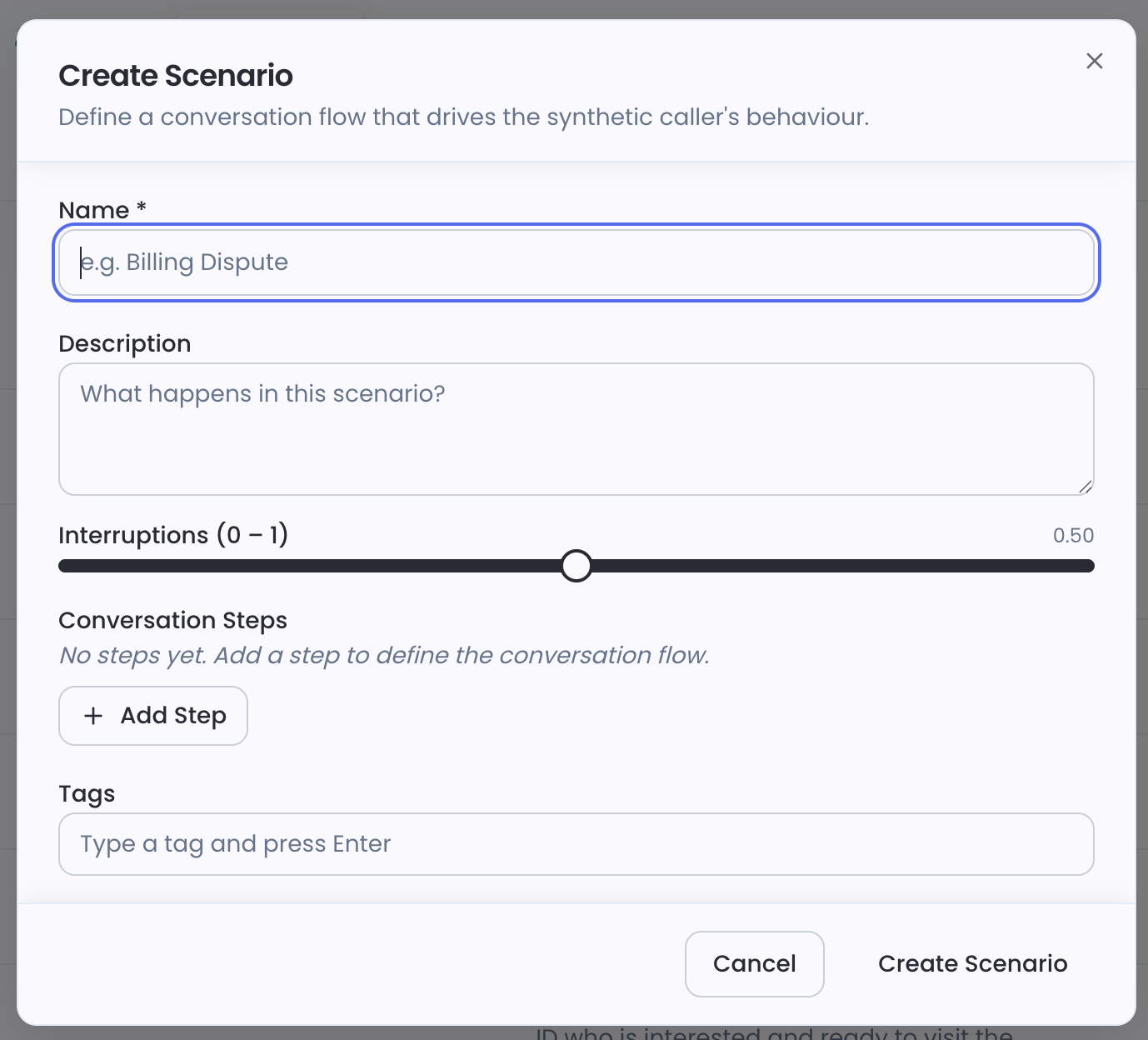
Scenario fields
| Field | Description |
|---|---|
| Name ★ | Display name shown in the run matrix (e.g., Billing Dispute, Qualified Mumbai Candidate) |
| Description | What happens in this scenario |
| Interruptions | Per-scenario interruption override — slider from 0 to 1, default 0.50 |
| Conversation Steps | Ordered steps the synthetic caller follows — click + Add Step to add each one |
| Tags | Labels for filtering (type a tag and press Enter) |
★ Required field.
Conversation Steps
Click + Add Step to define the conversation flow. Each step has:
| Property | Description |
|---|---|
| Action | What the synthetic caller says or does (e.g., "Ask about the security deposit amount") |
| Condition | Optional: only run this step if a condition is met — creates natural conversation branches |
| Fixed | If toggled on, this step always executes regardless of conversation state |
The scenarios list shows total step count and how many are fixed (e.g., "5 steps, 3 fixed").
Generating scenarios with AI
Running tests
How batch runs work
A batch run pairs selected scenarios with selected personas and runs every combination in parallel:
Launching a batch run
Batch runs are launched from the Scenarios tab.
The run dialog accepts:
| Field | Description |
|---|---|
| Name | An identifier for this batch (e.g., ef-fourth-test) |
| Provider connection | Which Agent Connection endpoint to use |
| Personas | Select which personas to pair with the chosen scenarios |
| Mode | voice (real-time audio) or text |
| Metrics | Optionally choose which scorers to run (or leave empty to use project defaults) |
Batch run detail
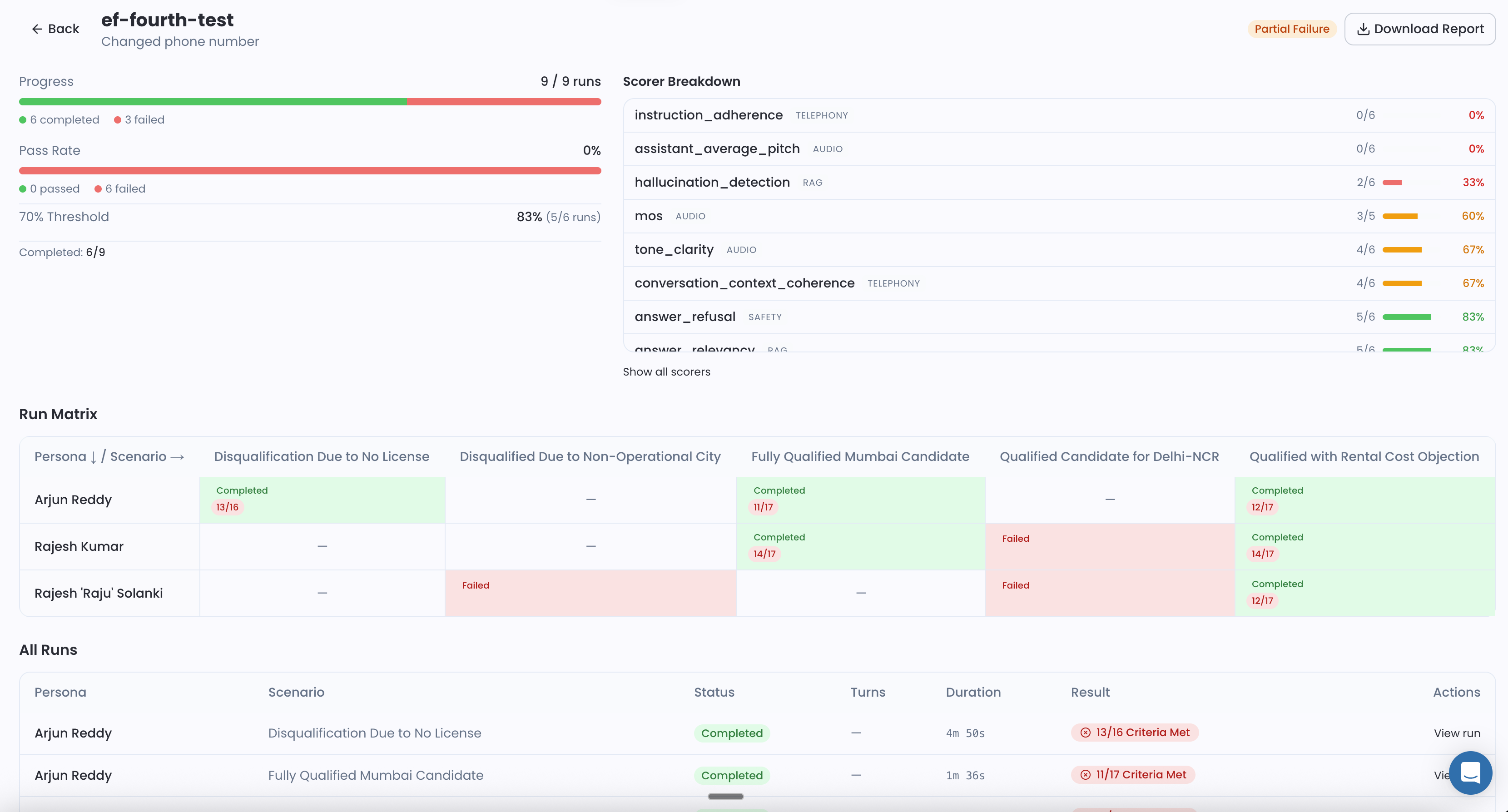
Summary bar
| Field | Description |
|---|---|
| Progress | Completed / total runs (e.g., 9 / 9 runs) with dual progress bars (green = completed, red = failed) |
| Pass Rate | % of sessions where ALL success metrics passed |
| 70% Threshold | % of sessions where ≥ 70% of success metrics passed (e.g., 83% (5/6 runs)) |
| Status | Completed, Partial Failure (some runs failed), or Failed |
A "Download Report" button is available in the top-right when the run is complete.
Scorer Breakdown (right panel)
Shows how each scorer performed across all sessions:
| Column | Description |
|---|---|
| Scorer name | e.g., instruction_adherence |
| Category badge | TELEPHONY · AUDIO · RAG · SAFETY · LATENCY |
| Pass count | e.g., 0/6 (sessions that passed this scorer) |
| Pass % | e.g., 0% (red) or 83% (green) |
Click Show all scorers to expand the full list.
Run Matrix
A grid where rows = personas and columns = scenarios. Each cell shows:
| Cell state | Meaning |
|---|---|
Completed (green) + N/M score | Run completed; N = criteria met out of M total |
| Failed (red) | Run failed or all criteria failed |
| — | This persona × scenario combination was not included in the batch |
The matrix instantly shows which specific combinations are failing. If every cell in one column is red, that scenario is the problem. If one row is consistently failing, that persona is exposing an issue.
All Runs table
Below the matrix, a flat list of every individual session with columns:
Persona · Scenario · Status · Turns · Duration · Result · Actions
Click View run to open the individual session detail.
Run detail (individual session)
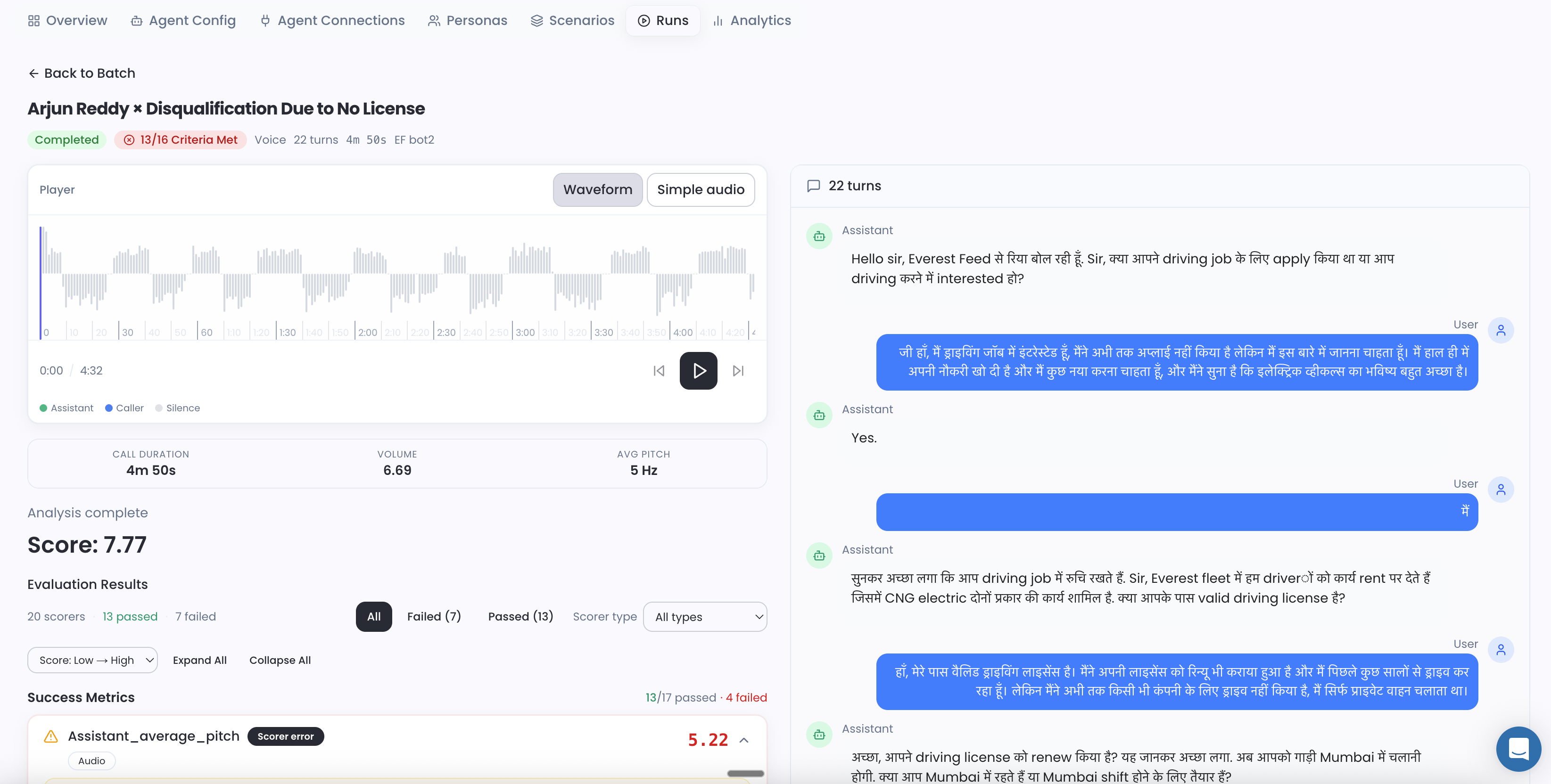
The individual run page title shows "PersonaName × ScenarioName" along with:
- Completed status badge (green)
- N/M Criteria Met badge — how many scorer thresholds were met (e.g.,
13/16 Criteria Met) - Run metadata: mode (Voice / Text), turn count, call duration, endpoint name
Audio player
For voice and phone sessions:
- Waveform / Simple audio toggle
- Color-coded speaker segments:
● Assistant(green) ·● Caller(blue) ·● Silence(gray) - Audio stats beneath the player: CALL DURATION · VOLUME · AVG PITCH
- Playback controls with seek bar (click any point to jump)
Aggregate score
Score: X.XX (0–10 scale) shown prominently below the player — the aggregate across all scored criteria.
Evaluation Results
- Summary:
N scorers · M passed · P failed - Filter tabs: All · Failed (N) · Passed (M) · Scorer type dropdown
- Sort: Score Low → High
- Expand All / Collapse All buttons
Each scorer card shows the scorer name, category badge, score (e.g., 7.80/10), and a green progress bar for passing scorers. A "Scorer error" badge (orange ⚠) appears when the scorer encountered a technical error — the score may still be shown but reliability is reduced.
Transcript
The right panel shows the full turn-by-turn conversation:
- Assistant turns on the left
- User (synthetic persona) turns on the right
- All turns in the original language the agent and persona spoke
Analytics
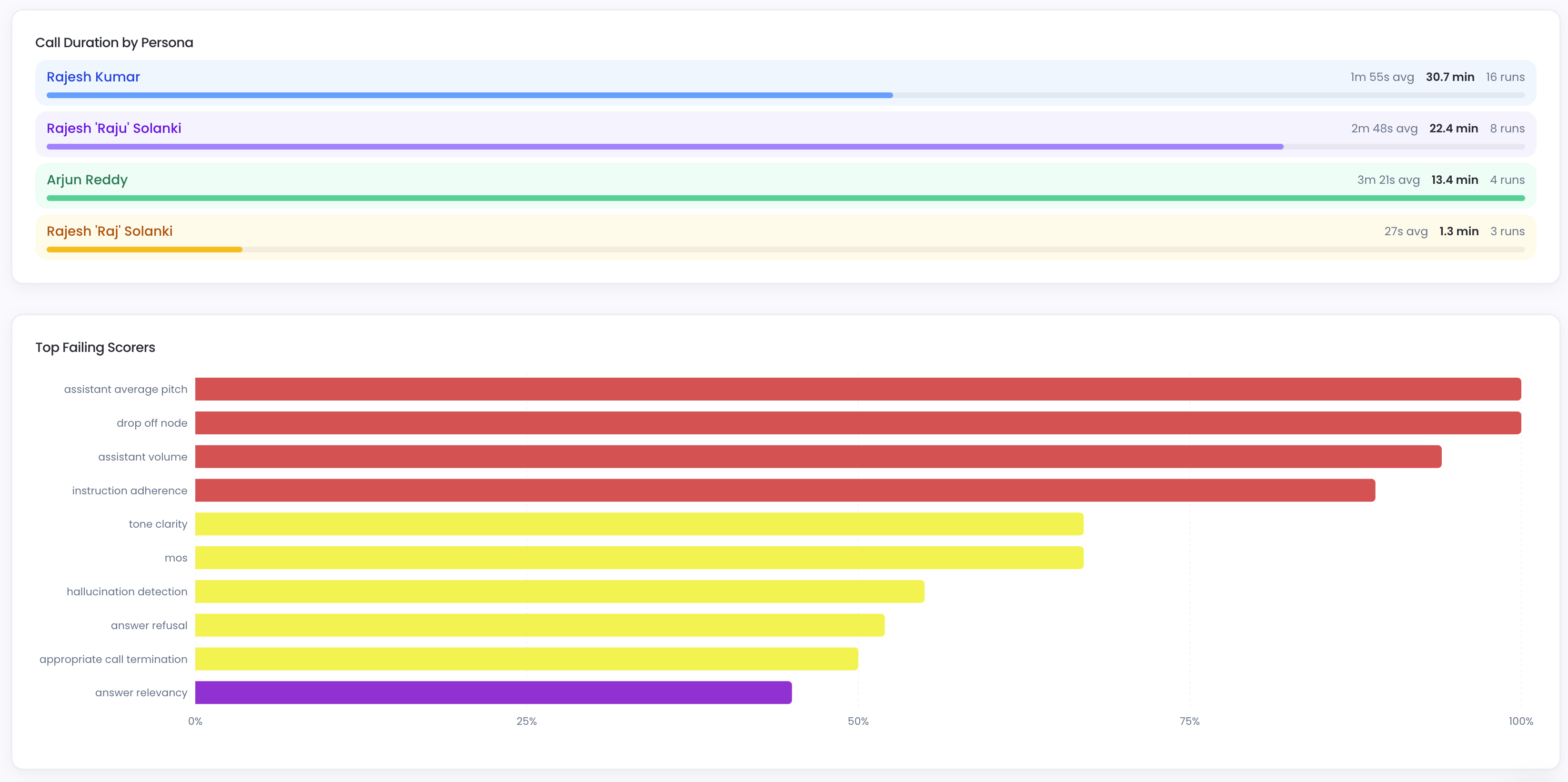
The Analytics tab gives aggregated insights across all runs.
Call Duration by Persona — horizontal bar chart showing average and max duration per persona, with run count.
Top Failing Scorers — bar chart ranking scorers by failure rate across all runs. Use this to identify which quality dimensions are consistently problematic (e.g., if assistant_average_pitch and drop_off_node are always near 100% failure, those are your biggest issues to fix).
| Chart | What it shows |
|---|---|
| Pass rate over time | Daily pass rate trend — spot regressions after prompt changes |
| Runs by Scenario | Pie chart of run distribution — identify which scenarios are run most |
| Call Duration by Persona | Average and max call duration per persona |
| Top Failing Scorers | Ranked list of scorers by failure rate |
Filter by 7 days, 30 days, or 90 days. Export raw data as CSV with Export CSV.
Scorers used in NovaSynth
NovaSynth sessions are scored with these categories (configurable per project via the batch run dialog):
| Category | Scorers |
|---|---|
| Audio Quality | mos, tone_clarity, pronunciation_audio, gibberish, audio_breakage, mispronunciation, speaking_over_user, word_accuracy, assistant_average_pitch_hz, assistant_volume_rms |
| Latency | assistant_latency, llm_ttft, stt_latency, tts_latency, tts_ttfb, e2e_latency, end_of_turn_delay |
| Conversation Quality | instruction_adherence, sentiment_csat, drop_off_node, conversation_context_coherence, appropriate_call_termination |
| Accuracy & RAG | answer_relevancy, hallucination_detection, claim_verification, factual_accuracy |
| Safety | answer_refusal, content_moderation, content_safety_violation, is_harmful_advice, toxicity |
| Summary | item_summary |
All scores display as X.XX/10 in the dashboard. See Scorers Reference for field requirements and descriptions.
Next steps
- Setup — configure provider connections before running
- Scorers Reference — understand what each scorer measures
- Datasets — NovaSynth sessions automatically populate a dataset
- NovaPilot — AI recommendations based on NovaSynth results
Get Early Access to Noveum.ai Platform
Be the first one to get notified when we open Noveum Platform to more users. All users get access to Observability suite for free, early users get free eval jobs and premium support for the first year.